Recording Online Meeting Audio with Meeting Ink on Your Computer
June 17, 2024If you record an online meeting on your computer with only your microphone, you'll often miss what other people say. Meeting Ink for web uses your browser's sharing feature to capture the meeting audio directly, together with your microphone, so everyone's speech ends up in the transcript.
This guide applies to Chrome and Edge on computers (Windows and Mac). Recording on a phone works differently, so these steps don't apply there.
Why can't my microphone pick up sound from my speakers?
Because echo cancellation removes it. Browsers and meeting apps turn on echo cancellation for the microphone by default. It treats sound that your computer plays and your microphone picks back up as echo, and removes it. As a result, other people's voices are heavily reduced or disappear, and the transcript misses them.
Sharing audio through the browser takes the sound directly from the browser or system, without going through your speakers and microphone. Echo cancellation doesn't affect it, and the audio is cleaner.
Which option should I choose?
The share dialog has three tabs. Choose based on where your meeting runs.
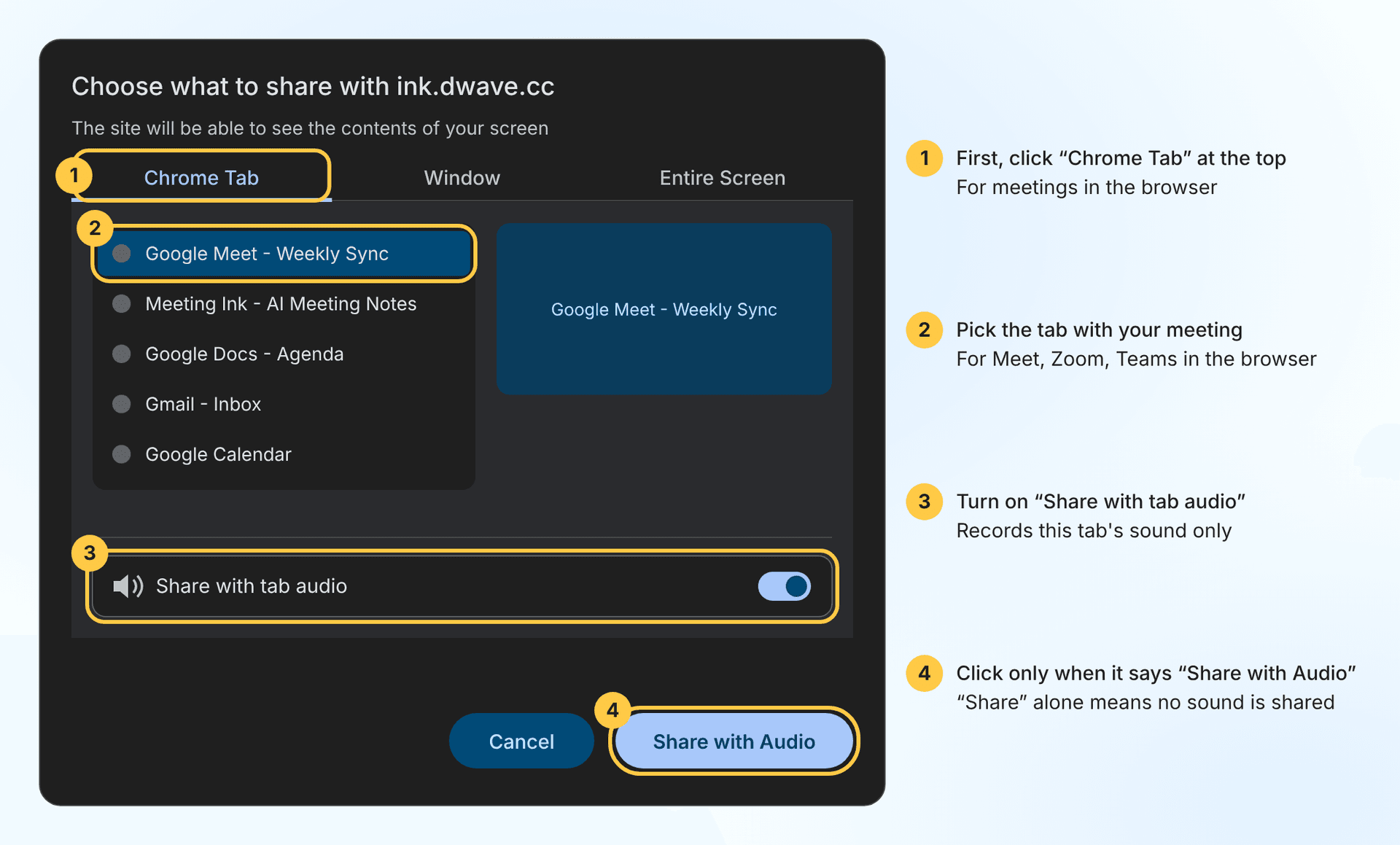
If you're unsure, Chrome Tab is the cleanest choice for browser meetings, since it won't pick up notification sounds. Otherwise, choose Window or Entire Screen.
Steps
- Create a meeting: Click "+ New Meeting" in the top-right corner and choose "Record Meeting".
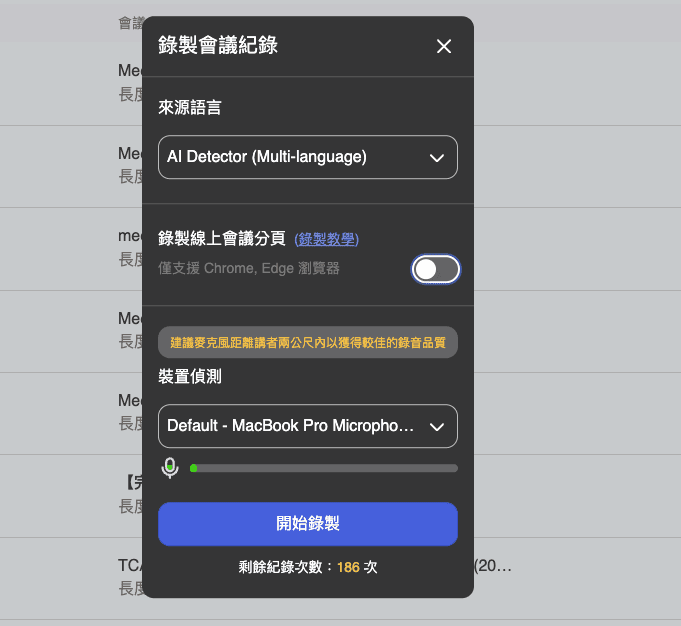
- Turn on audio sharing: In the recording settings, turn on "Record online meeting tab" (Chrome and Edge only). Your browser opens the share dialog.
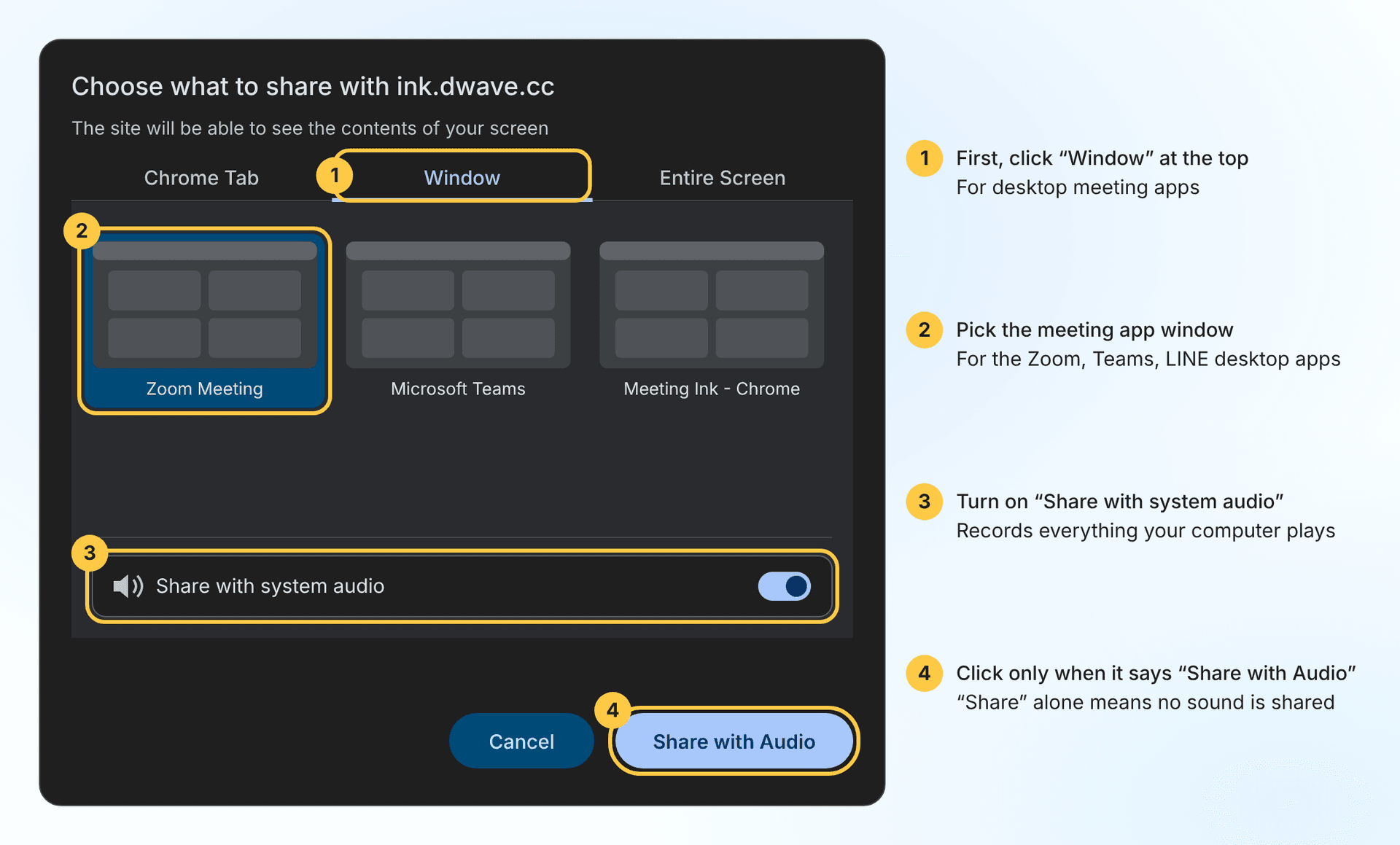
- Choose what to share: Following the table above, switch to Chrome Tab, Window, or Entire Screen, and select the tab, window, or screen with your meeting.
- Make sure the audio toggle is on: "Share with tab audio" or "Share with system audio" at the bottom of the dialog must be on. On Entire Screen, this toggle is off by default, so turn it on manually.
- Start recording: After the device check, click "Start Recording". You can switch back to your meeting, and Meeting Ink keeps recording in the background.
Browser meetings: choose "Chrome Tab"
Desktop apps: choose "Window"
Or choose "Entire Screen" (the audio toggle is off by default)
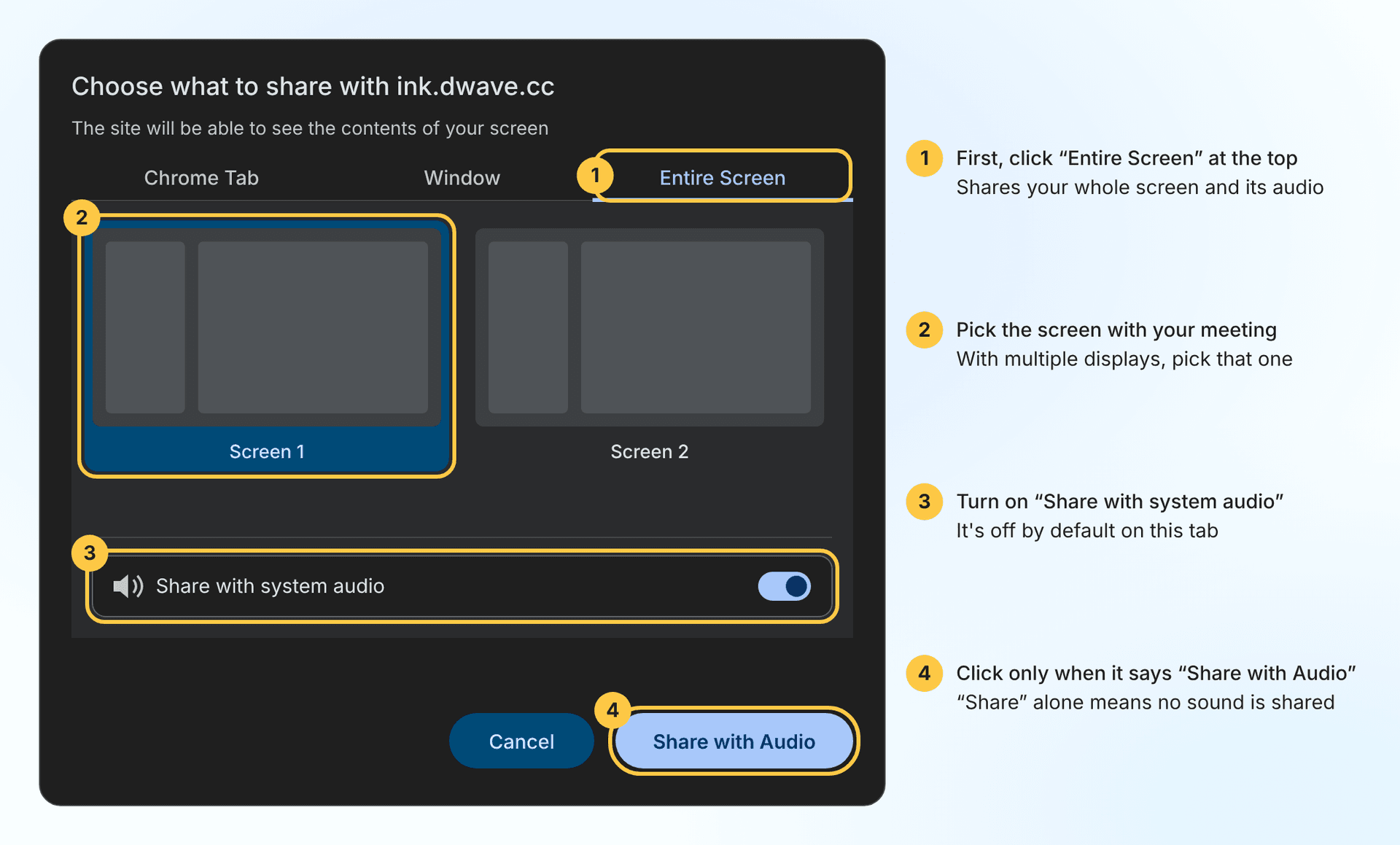
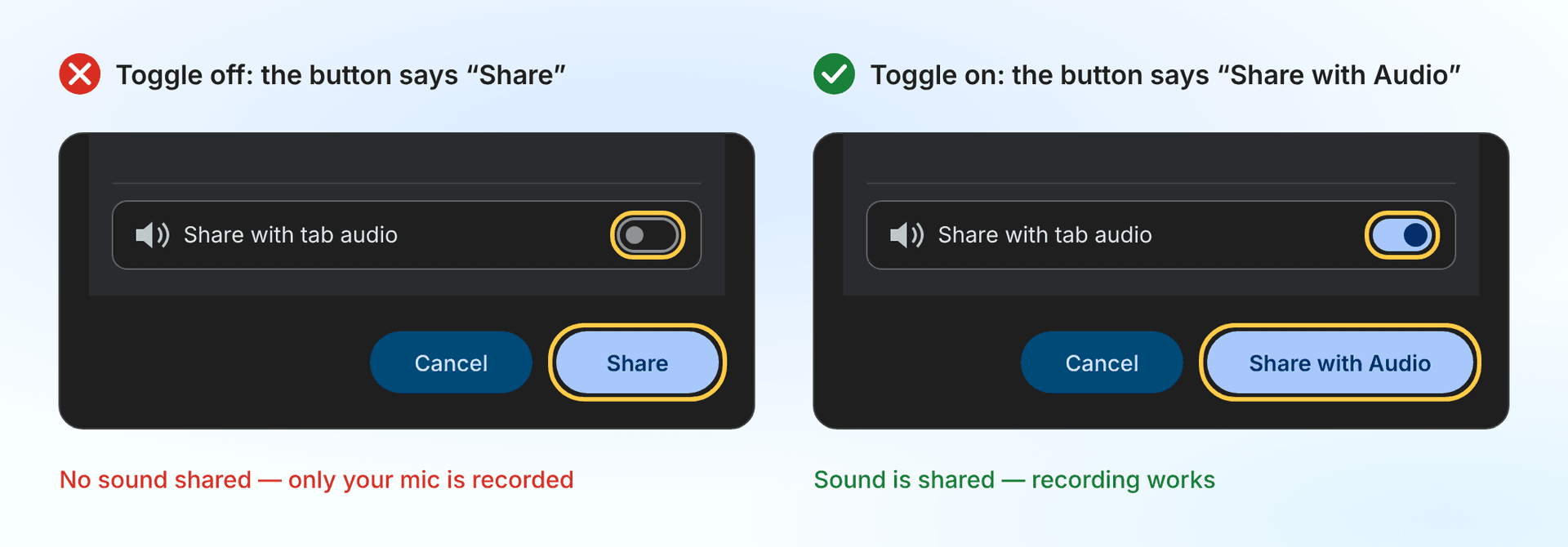
How do I know audio is being shared? Check the button
Check the button before you share. If it says "Share with Audio", sound will be shared. If it only says "Share", no sound will be shared, so turn on the audio toggle first.
Which browsers and operating systems are supported?
Tab audio works in both Chrome and Edge. On Mac, system audio requires Chrome 142 or later and macOS 14.2 or later. Linux supports tab audio only. Firefox and Safari don't support audio sharing.
Sources: for the API, see the Chrome developer documentation and the Chrome 141 release notes. For system requirements (macOS 14.2, Chrome 142), see the Google Workspace Updates announcement and Apple's developer documentation.
FAQ
Q: My recording only has my voice, not the other people's. Why?
Usually the audio toggle wasn't on when you shared, especially on Entire Screen, where it's off by default. Stop and share again, and make sure the button says "Share with Audio".
Q: I can't find the audio toggle, or sharing doesn't work.
Make sure you're using Chrome or Edge. On Mac, you need macOS 14.2 or later and Chrome 142 or later. Allow your browser in System Settings → Privacy & Security → Screen & System Audio Recording, then restart it (see Apple Support). On older versions, use the browser version of your meeting and share a Chrome Tab instead.
Q: Will my screen be recorded?
The browser's sharing flow always includes the screen, but Meeting Ink only uses the audio for transcription.
Q: Can I record if I'm not the meeting host?
Yes. Let other participants know and get their consent first, and follow your organization's recording policies.

ทดลองใช้ Meeting Ink ฟรี
สัมผัสทุกฟีเจอร์หลักของ Meeting Ink เพื่อให้การประชุมของคุณมีประสิทธิภาพมากยิ่งขึ้น!
อ่านเพิ่มเติม

Your Face Is the Password Now: Passkey Sign-In Comes to Meeting Ink

Paste a YouTube / Apple Podcast Link to Instantly Transcribe: Take Notes, Write Articles, and Organize Key Points All in One Place

Meeting Ink Desktop Release Note