
Your Face Is the Password Now: Passkey Sign-In Comes to Meeting Ink
August 8, 2026It's one minute to your meeting and your notes app won't let you in.
Wrong password. You hit "Forgot password." Down the hall, the meeting has already started without you.
You can delete that scene from your workday. Meeting Ink now supports passkeys: look at your screen or touch the sensor, and two seconds later your notes are open. Whatever you already do to unlock your phone — Face ID, Touch ID, a fingerprint, a PIN — is now how you get into Meeting Ink. Nothing to type. Nothing to wait for. Nothing to remember.
Your face is the key. And it's a key nobody can copy or steal.
This isn't just about convenience
Think about what's actually in your meeting notes. Quarterly decisions. Client pricing. Roadmaps. Personnel conversations. Your notes are probably the most candid record your company keeps.
Now think about what's guarding all of it. For most people: one password, reused across a dozen sites.
Here's the uncomfortable part — a breach doesn't require you to do anything wrong. Reuse that password anywhere else, wait for that site to get hacked, and attackers will run the list against every account with your name on it. Phishing is even simpler: build a login page that looks close enough, and wait for you to type the password in yourself.
Passkeys don't have either problem, by design.
- Nothing worth stealing. Creating a passkey generates a key pair on your device. The private half never leaves it; we only ever store the public half. No password crosses the network, so there's nothing in our database for anyone to walk off with.
- Phishing doesn't work. Your passkey is bound to Meeting Ink's domain. A pixel-perfect fake can't trigger it, because it isn't us.
- Your biometrics stay yours. Face and fingerprint matching happens on your device, full stop. We get a yes or a no — never the data behind it.
- Two factors, one gesture. A passkey proves you have the device and that you're you. It's the same two checks as "password + SMS code," collapsed into a single tap. Not less security — just security you don't have to notice.
For admins: enforced passwordless is coming
Soon you'll be able to turn on enforced passwordless sign-in — for your own account or across your whole organization. Once it's on, passkeys are the only way in; passwords stop working as an entry point.
If you're the person who has to answer compliance questionnaires, that's one toggle instead of a policy nobody follows. No more chasing down who's still using their dog's name, or who has credentials on a sticky note.
Passwords weren't killed by hackers. They were killed by friction.
Apple, Google, and Microsoft have all committed to passkeys. Every device you bought in the last few years ships with the technology already inside. This isn't a prediction about where login is going — it's where login already went. We just think Meeting Ink should be there too.
Which fits how we think about meetings generally. Productivity doesn't start when the meeting starts; it starts when you open your laptop. Calendar sync handles the scheduling. The bot joins on its own. Now sign-in takes two seconds. From sitting down to being present, there's nothing left to stop for.
That's what logging in should have been all along: fast, safe, and invisible.
Set it up in a minute
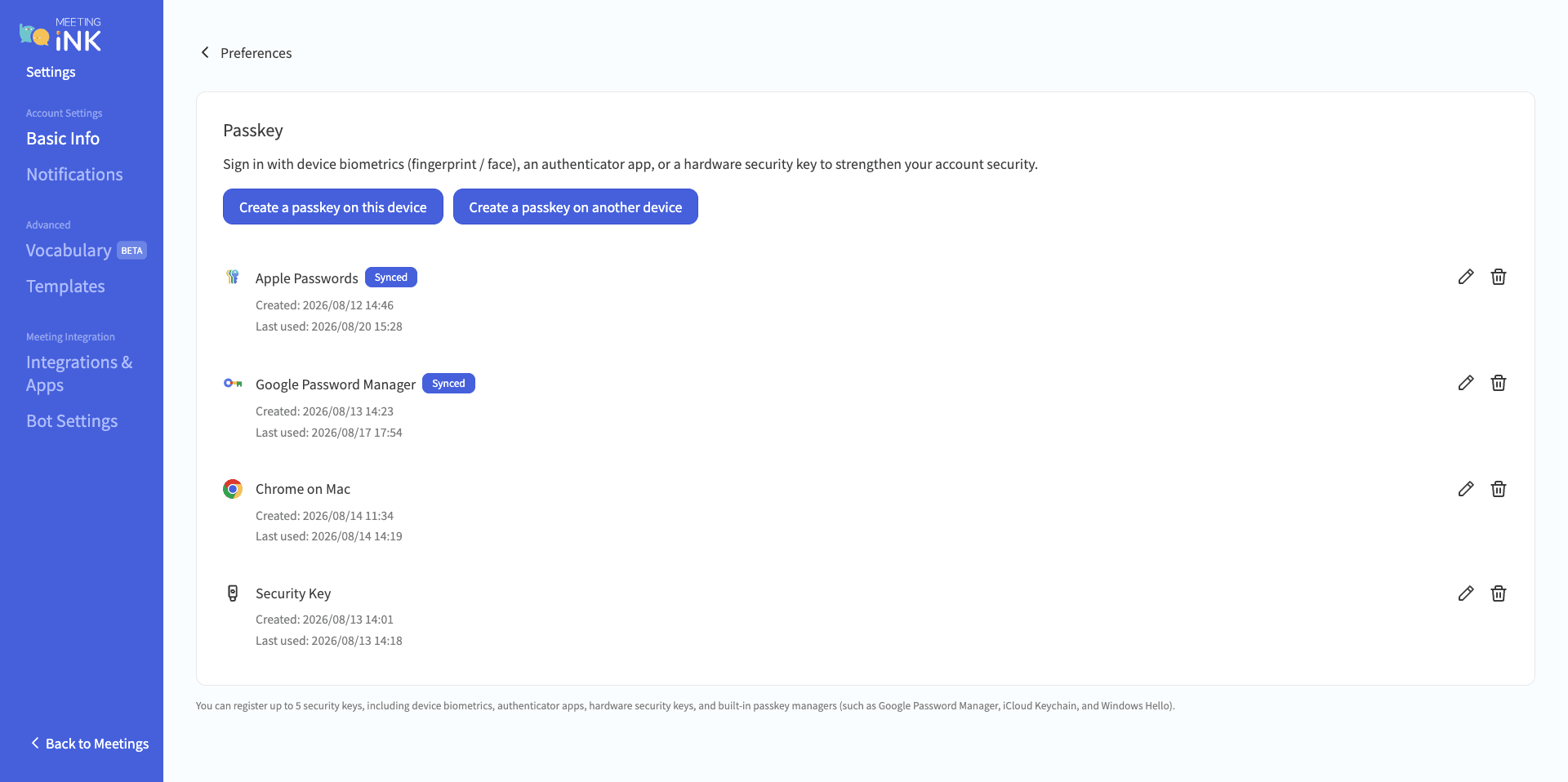
- In Meeting Ink, click your avatar → Settings → Profile → Security, and hit Set up under Passkey.
- Pick Create a passkey on this device, or pick Create a passkey on another device and scan the QR code with your phone to keep the key there. (Go with the phone — it's always on you, and one passkey then covers every computer you touch.)
- Confirm with Face ID, a fingerprint, or your PIN. That's it. Next time, click Sign in with a passkey.
Works on web, iOS, and Android. Your password and Google sign-in stay exactly where they are, so nothing breaks while you try it. Device requirements, syncing, and the rest are in the FAQ below.
Will it work on your device?
On the web
- iPhone / iPad — iOS 16 or later. Turn on iCloud Keychain if you want the passkey on your other devices too.
- Mac — macOS Ventura or later, in Safari or Chrome
- Android — Android 9 or later, in Chrome, signed in to Google Password Manager
- Windows — Windows 10 or 11 with Windows Hello set up (face, fingerprint, or PIN)
- Browser — latest Chrome, Edge, or Safari
In the app
- iOS — iOS 16 or later, app updated
- Android — Android 9 or later, app updated
- Your device needs biometrics or a screen lock already turned on
Already using 1Password, Bitwarden, or a hardware security key? Store your passkey there instead — it's the most portable option if you move between platforms.
Open your settings and give yourself a key you can't lose 🔑 Set up the passkey now
Thoughts or requests? We're on LINE at @deepwave (add us: https://lin.ee/Rd9nvel)
by Meeting Ink Team
FAQ
What's a passkey, and how is it different from a password?
It's what replaces the password. When you create one, your device generates a pair of keys — it keeps the private one, we store the public one. To sign in, your device signs a challenge and our server checks it. Nothing secret is ever sent, which is why passkeys can't be leaked, stuffed, or phished.
How do I set up the passkey?
Avatar → Settings → Profile → Security → Passkey, then choose:
- On this device — your browser or OS asks where to keep it (iCloud Keychain, Google Password Manager, your Chrome profile, Windows Hello). Confirm with biometrics and you're done.
- On another device — scan the QR code with your phone or tablet camera and confirm there; the passkey lives on that device. Keep Bluetooth on and both devices close together while you scan.
You can have up to 5 passkeys per account, and rename or delete any of them from the list.
Can I still use my password?
Yes. Passkeys are an additional option — your password and Google sign-in keep working, so hold onto them as a fallback. If you'd rather lock things down, enforced passwordless sign-in is coming for both personal and organization accounts; once it's on, passkeys are the only way in.
I move between several computers, and my work machine is shared. Where should I create my passkey?
On your phone — not on the shared machine. Your phone goes everywhere with you and already has biometrics, so one passkey covers both cases: unlock directly on the phone, or pick Use another device on any computer and scan the QR code. Office, home, borrowed, shared — you never set it up again, and nothing is left behind on the computer.
I got a new phone. Do I have to start over?
Look for the Synced label. Anything synced — iCloud Keychain, Google Password Manager, 1Password and the like — shows up on the new phone by itself. Anything without the label stayed on the old device, so create a fresh one.
My phone was stolen. Can someone get into my account?
No. A passkey won't work without that device's biometrics or screen lock, and whoever has your phone can't pass either. Still, sign in elsewhere and delete it: Settings → Profile → Security → Passkey.
Do you get my fingerprint or face data?
No. Matching happens on your device and stays there. All we receive is confirmation that it went through.
Why does a passkey count as MFA?
"Password + SMS code" is two factors in two steps. A passkey is two factors in one. Unlocking proves something you have — a private key on your device that can't be copied or lifted remotely — and something you are or know — your face, fingerprint, or PIN. Your device won't sign unless both hold. So nothing is skipped; the two checks just happen at once. And because it's tied to our domain, there's no phishing page to fall for and no SMS to intercept — which puts it ahead of "password + SMS code," not behind it.

Try Meeting Ink for Free
Experience all core features of Meeting Ink to make your meetings more efficient!
Read More
7 AI Meeting Assistant Tools Comparison: Fastest Transcription and Summary
Are You Choosing the Right AI Meeting Notes Tool? 5 Common Misconceptions Debunked

Are Google Meet’s Live Captions Not Enough? A Comparison Guide to Meeting Ink’s Cross-Platform Real-Time Translation and Meeting Transcription