
Meeting Ink
MCP
Turn your meetings into a knowledge base your AI can chat with.
Pipe Meeting Ink transcripts straight into your AI tools and query summaries, transcripts and translations in plain language — like having a conversation with your meetings, integrated seamlessly into your AI workflow.
Talk to your meetings in plain language
Connect to ChatGPT, Claude, Codex CLI, Cursor and more — ask things like "What pricing strategy did we discuss with the client last week?"
Read-only by design
Your assistant can read but never write. "AI won't tamper with my data" is the baseline for letting it into your meetings.
Summaries and transcripts together
AI decides what to read — quick questions hit the summary, deep dives go straight to the transcript.
Speaker-labeled transcripts
Every line knows who said it, so AI can trace decision ownership instead of guessing from a wall of text.
Quick to set up
Just follow the steps and authorize — you're connected in minutes.
Team management (coming soon)
Not just a personal tool — admins will be able to track team meeting activity, follow up on action items, and roll up reports via AI.
Plug AI into your meeting library in 5 minutes
Meetings, transcripts, AI summaries, translations and terminology — works out of the box.
What is MCP
The Model Context Protocol (MCP) is an open standard that lets AI securely connect to external tools and data sources. Through the Meeting Ink MCP Server, you can plug your Meeting Ink workspace into any MCP-capable AI tool (Claude, Cursor, ChatGPT, Codex CLI and more), letting them read your meeting transcripts, summaries and translations and query them in natural language — integrated seamlessly into your AI workflow.
Once connected, you can query meetings, read summaries, fetch transcripts and translations directly inside your AI tool — combine them with other data sources, generate decks and reports — all in natural language, without breaking flow to switch tools.
Prerequisites
Before you connect, make sure you have the following:
- A Meeting Ink account. During the BETA period, every personal and enterprise plan can use MCP, including the free plan.
- An MCP-capable AI client, such as Claude, Cursor, ChatGPT or Codex CLI.
Option 1: Quick setup
Authorize your AI tool via OAuth to access your meeting data through Meeting Ink MCP. Pick your AI tool and follow the steps below:
- Add a custom connector
Open the Claude Desktop App and click Customize → Connectors → "+" → Add custom connectors (reference)
- Enter the Meeting Ink MCP details
Fill in the following:
- Name: Meeting Ink MCP
- Remote MCP Server URL: https://ink-mcp.dwave.cc/mcp
- Authorize
Click Connect — your browser opens the authorization page automatically. Sign in to your Meeting Ink account and click "Approve and allow access".
- Confirm the connection
Back in Claude, start a new conversation and enter the prompt below to confirm the connection.
What was my latest meeting about?
- Turn on developer mode
Open ChatGPT with a paid account and click Settings → Apps → Advanced settings, then turn on developer mode (reference)
- Create the Meeting Ink MCP app
Go to Apps → Create and fill in the following:
- Name: Meeting Ink MCP
- Connection / server URL: https://ink-mcp.dwave.cc/mcp
- Authentication: OAuth
- Authorize
Click Create — your browser opens the authorization page automatically. Sign in to your Meeting Ink account and click "Approve and allow access".
- Confirm the connection
Back in ChatGPT, start a new conversation and enter the prompt below to confirm the connection.
What was my latest meeting about?
- Add the MCP server
claude mcp add --transport http meeting-ink-mcp https://ink-mcp.dwave.cc/mcp
- Authorize
In Claude Code, type /reload to reload, then type /mcp and pick meeting-ink-mcp → Authenticate. Your browser opens the authorization page — sign in to your Meeting Ink account and click "Approve and allow access".
- Confirm the connection
Back in Claude Code, start a new conversation and enter the prompt below to confirm the connection.
What was my latest meeting about?
- Add the MCP server
codex mcp add meeting-ink-mcp --url https://ink-mcp.dwave.cc/mcp
- Authorize
Run the command below in your terminal. Your browser opens the authorization page automatically — sign in to your Meeting Ink account and click "Approve and allow access".
codex mcp login meeting-ink-mcp
- Confirm the connection
Back in Codex, start a new conversation and enter the prompt below to confirm the connection.
What was my latest meeting about?
- Add the MCP server
Add this to your Cursor MCP config (
~/.cursor/mcp.jsonfor global, or.cursor/mcp.jsonin your project).{ "mcpServers": { "meeting-ink-mcp": { "url": "https://ink-mcp.dwave.cc/mcp" } } } - Authorize
Open Cursor Settings → MCP, find meeting-ink-mcp and click "Needs Login". Your browser opens the authorization page — sign in to your Meeting Ink account and click "Approve and allow access".
- Confirm the connection
Back in Cursor, start a new conversation and enter the prompt below to confirm the connection.
What was my latest meeting about?
- Add the MCP server
gemini mcp add -t http meeting-ink-mcp https://ink-mcp.dwave.cc/mcp
- Authorize
Start the Gemini CLI and run
/mcp auth meeting-ink-mcp. Your browser opens the authorization page automatically — sign in to your Meeting Ink account and click "Approve and allow access". - Confirm the connection
Back in the Gemini CLI, start a new conversation and enter the prompt below to confirm the connection.
What was my latest meeting about?
Option 2: Advanced setup — get a Connect API key
The Meeting Ink MCP server authenticates with a Connect API key tied to your account. Create one as follows:
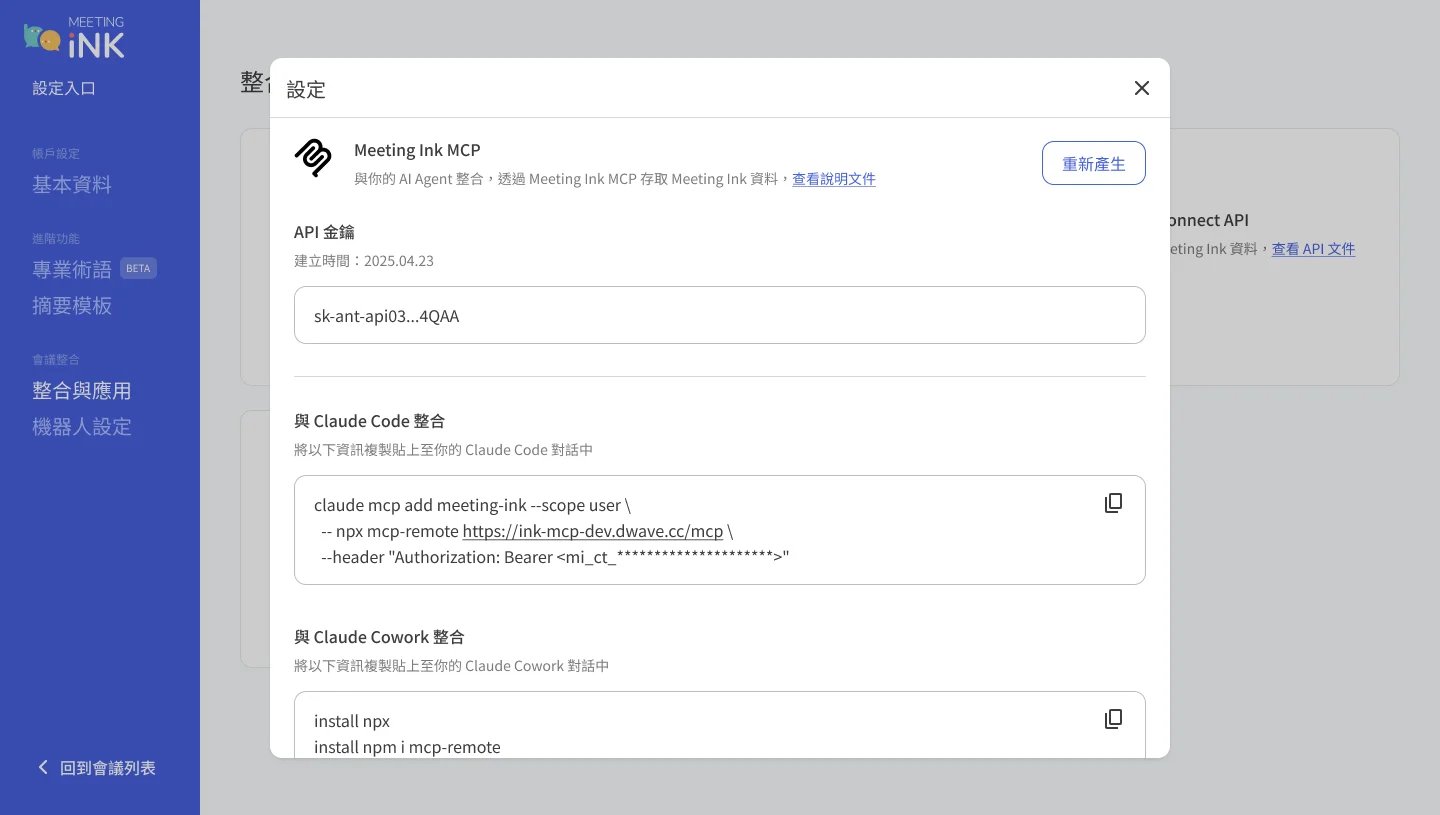
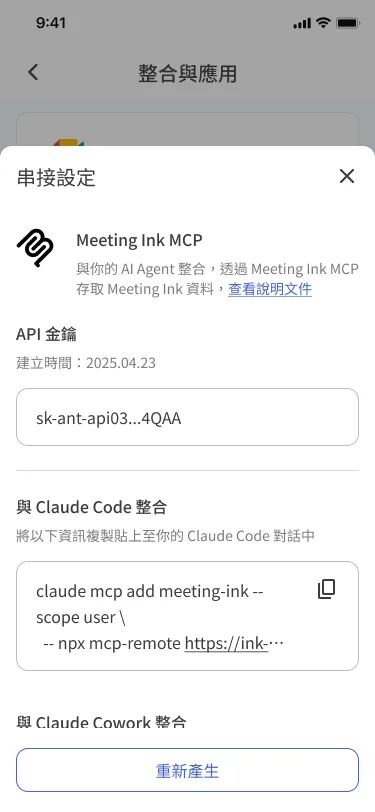
- Find the Meeting Ink MCP section in Integrations settings
Sign in to Meeting Ink, go to Settings → Integrations & Apps, locate the Meeting Ink MCP card and click "Set up".
- Generate your Connect API key
Click "Generate key" and copy it to a safe place — the key acts like a password.
- Connect your AI tool
Pick your AI tool and follow the setup instructions, replacing <your_API_Key> with your Connect API key.
Run this command in your terminal to register the Meeting Ink MCP server.
claude mcp add --transport http meeting-ink https://ink-mcp.dwave.cc/mcp --header "Authorization: Bearer <your_API_Key>"
Add this entry to your Claude Cowork MCP configuration.
{
  "meeting-ink": {
    "command": "npx",
    "args": [
      "mcp-remote",
      "https://ink-mcp.dwave.cc/mcp",
      "--header",
      "Authorization: Bearer <your_API_Key>"
    ]
  }
}
Add Meeting Ink as a custom connector in ChatGPT's Developer Mode.
ChatGPT's Developer Mode custom connectors only accept OAuth / No Authentication — they do not take a static
Authorization: Bearer <api-key>header the way Claude Code or Cursor do. Use the ChatGPT flow under "Option 1: Quick setup" above instead.Add this JSON to your Cursor MCP config (
~/.cursor/mcp.jsonfor global, or.cursor/mcp.jsonin your project).{ "mcpServers": { "meeting-ink": { "url": "https://ink-mcp.dwave.cc/mcp", "headers": { "Authorization": "Bearer <your_API_Key>" } } } }Add this TOML to
~/.codex/config.toml, then exportMEETING_INK_KEYin your shell.[mcp_servers.meeting-ink] url = "https://ink-mcp.dwave.cc/mcp" bearer_token_env_var = "MEETING_INK_KEY"
Run this command in your terminal to register the Meeting Ink MCP server.
gemini mcp add --transport http meeting-ink https://ink-mcp.dwave.cc/mcp --header "Authorization: Bearer <your_API_Key>"
Once connected — what can you do?
Meeting Ink MCP gives your AI tool read-only access to your Meeting Ink meetings, transcripts and summaries. You can ask it to:
- Browse your meetings —— List and look up meetings by name, status or date. e.g. List my meetings this week and the follow-ups I owe.
- Get transcripts —— Retrieve speaker-tagged transcripts for any meeting. e.g. What did my manager say in the meetings these last few weeks?
- Read AI summaries across meetings —— Pull AI-generated summaries rendered as readable markdown.
- Get multilingual content —— List and look up meetings by name, status or date.
- Check meeting hours and quota —— How many meetings did I run this month, and how much Meeting Ink quota do I have left?
Extending the AI workflow — Skills & Plugins
Meeting Ink's official Skills and Plugins are in the works — drop your email and we'll be the first to let you know the moment they go live!