คุณสมบัติราคากรณีการใช้งานดาวน์โหลดแอปห้องข่าว
TH
หน้าแรก
คุณสมบัติ
คำบรรยาย / แปลภาษาแพลตฟอร์มที่รองรับสรุปแม่แบบ AIคำศัพท์
ราคา
กรณีการใช้งาน
องค์กรและรัฐบาลกรณีศึกษาความสำเร็จ
ดาวน์โหลดแอป
มือถือMacWindowsพันธมิตร Kuro
ห้องข่าว
บล็อกศูนย์ช่วยเหลือ
คุณสมบัติ
  • คำบรรยาย / แปลภาษา
  • แพลตฟอร์มที่รองรับ
  • สรุปแม่แบบ AI
  • คำศัพท์
กรณีการใช้งาน
  • กรณีการใช้งานในอุตสาหกรรม
  • กรณีศึกษาความสำเร็จ
ห้องข่าว
  • บล็อก
  • ศูนย์ช่วยเหลือ
เปรียบเทียบ
  • vs Google Meet
  • vs Teams
  • vs PLAUD NOTE
  • vs Notta
รู้จัก Meeting Ink
  • ราคา
  • ข้อมูลปลอดภัย
  • รู้จัก DeepWave
  • ติดต่อเรา
ลิขสิทธิ์ © DeepWave

กำลังโหลด กรุณารอ

Meeting Ink Meeting Bot with Google Calendar Integration: Automatic Recording Guide

February 3, 2026

Meeting Ink Meeting Bot with Google Calendar Integration: Automatic Recording Guide

February 3, 2026

For online meetings, you can not only use window recording, but also have a bot automatically join the meeting and record it for you. Whether you care more about smooth, non‑intrusive recording or about the efficiency of automatic joining, Meeting Ink with its meeting bot settings can handle both. Once you connect Google Calendar, your calendar meetings will automatically appear in the Meeting Ink interface, and the bot will join according to your settings, letting you get transcripts and summaries with a single click. For ad‑hoc meetings, you can also manually dispatch the bot to record the online meeting.

The usage flow is very simple: go to the integration page, complete the Google authorization, and you're ready to go.

This article will walk you step by step through the setup: going to the integration page, granting Calendar permissions, configuring the bot, using the calendar view, and having the bot join ad‑hoc meetings or be manually activated to record online meetings.


How to start using the Meeting Ink meeting bot with Google Calendar integration

Quick start steps:
Step 1 | Go to the integration page
  • If you have not connected any account yet, go to the “Integrations & Apps” page from Settings.
  • On the Google Meet integration card, click “Connect” to open the integration setup page.

Step 2 | Click Google SSO and grant Calendar permission
  • In the integration settings, link your Google account. You'll be redirected to the Google sign‑in screen; log in with the Google account you want to use.
  • Make sure the “Access Google Calendar” option is checked, then click “Continue” (in the app, you may be able to proceed without ticking this). This completes the Google Calendar integration and syncs your calendar meetings into Meeting Ink.
  • If you don't grant Calendar permission, meetings will not display correctly on the calendar screen. If you see a permission error, go to your Google account settings, grant the necessary permission, and rerun the integration flow.
  • If you need to switch to a different Google account, you can go to the “Integrations & Apps” page, disconnect the current account, and then connect a new one.
  • For enterprise or workspace users, follow the same steps within that workspace: Settings → Integrations & Apps.

Step 3 | Go to bot settings and calendar after enabling
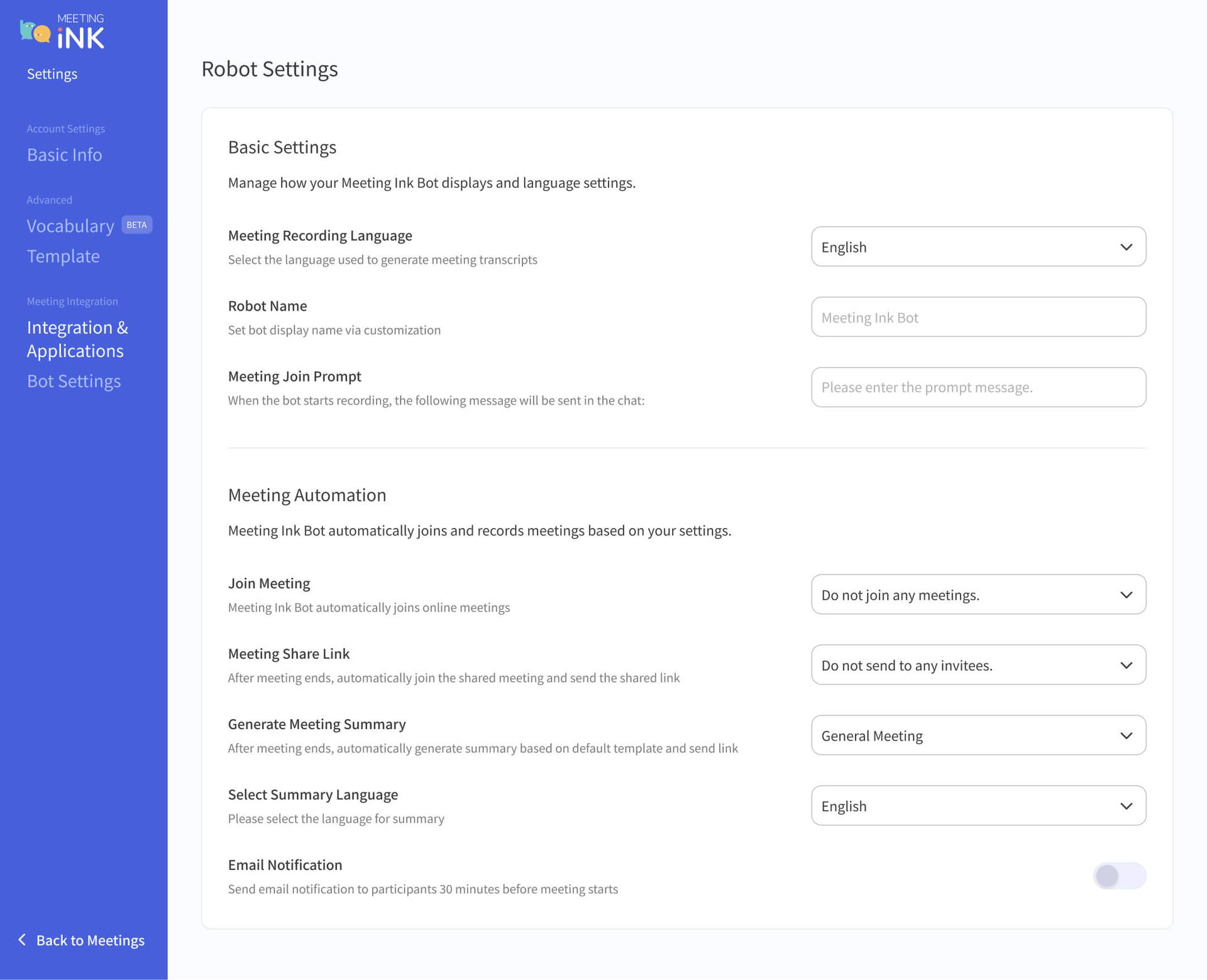
  • After the integration succeeds, a “Bot Settings” button will appear on the same Google integration card. Click it to go to the bot settings page.
  • By adjusting the basic settings and automation settings, you can make the bot's automatic joining behavior better match your meeting needs.
  • Back in the Dashboard, you'll see a Calendar page in the left‑hand navigation showing meetings synced from Google Calendar.

Bot settings page overview: faster, more convenient auto‑joining

After you finish connecting Google, you can tweak the Meeting Ink Bot's automatic behavior on the bot settings page, so the joining process, meeting records, and summaries better match your needs. Note that bot settings are only available on Pro and higher plans; Basic plan users can only use the calendar viewing integration.

Basic settings
  • Meeting transcription language: choose the language used in the meeting to get accurate transcripts.
  • Bot name: customize the name shown for the bot in the meeting chat. If you enter a custom name (for example, “Bot”), it will appear as “Bot - Meeting Ink”. If you leave it blank, only the default name “Meeting Ink” is shown.
  • Join message: when the bot starts recording, it automatically posts a message in the meeting chat. The system first shows a standard notice (for example: “XXX has invited Meeting Ink to record the meeting and take notes. Security & Privacy info: https://dwave.cc/privacy-policy”), followed by the custom message you set here.

Meeting automation
  • Joining meetings: configure whether the bot joins meetings automatically. You can choose options like “Join all meetings”, “Only join meetings I host”, or “Do not join any meetings automatically”. Enterprise users can also choose “Only join internal meetings (all participants share the same email domain)”. Note that if you choose to auto‑join all meetings, your monthly meeting hours will be consumed automatically.
  • Meeting rules: enter keywords here so the bot only auto‑joins meetings whose titles match those keywords. For example, if you choose “Join all meetings” above and enter the keyword “ABC” here, the bot will only join meetings whose titles contain “ABC”.
  • Meeting links: decide whether to automatically send a shared meeting link by email after the meeting, and who should receive it (all invitees / send to no one). Enterprise users can also select “internal members only”. This synchronization will also automatically add the meeting to the recipients' “Shared meetings” page.
  • Generate meeting summaries: choose whether to automatically generate a summary after the meeting based on the selected “summary template”, or disable automatic summary generation entirely.
  • Summary language: choose the appropriate setting based on the language you want your summary in.
  • Email notifications: you can enable email notifications that are sent to participants 30 minutes before the meeting starts.

Once you finish editing, your settings are saved automatically. Back on the personal Dashboard or enterprise Workspace calendar page and the “All meetings” page, you'll see the meeting list and card statuses reflecting your new settings.


Calendar page overview

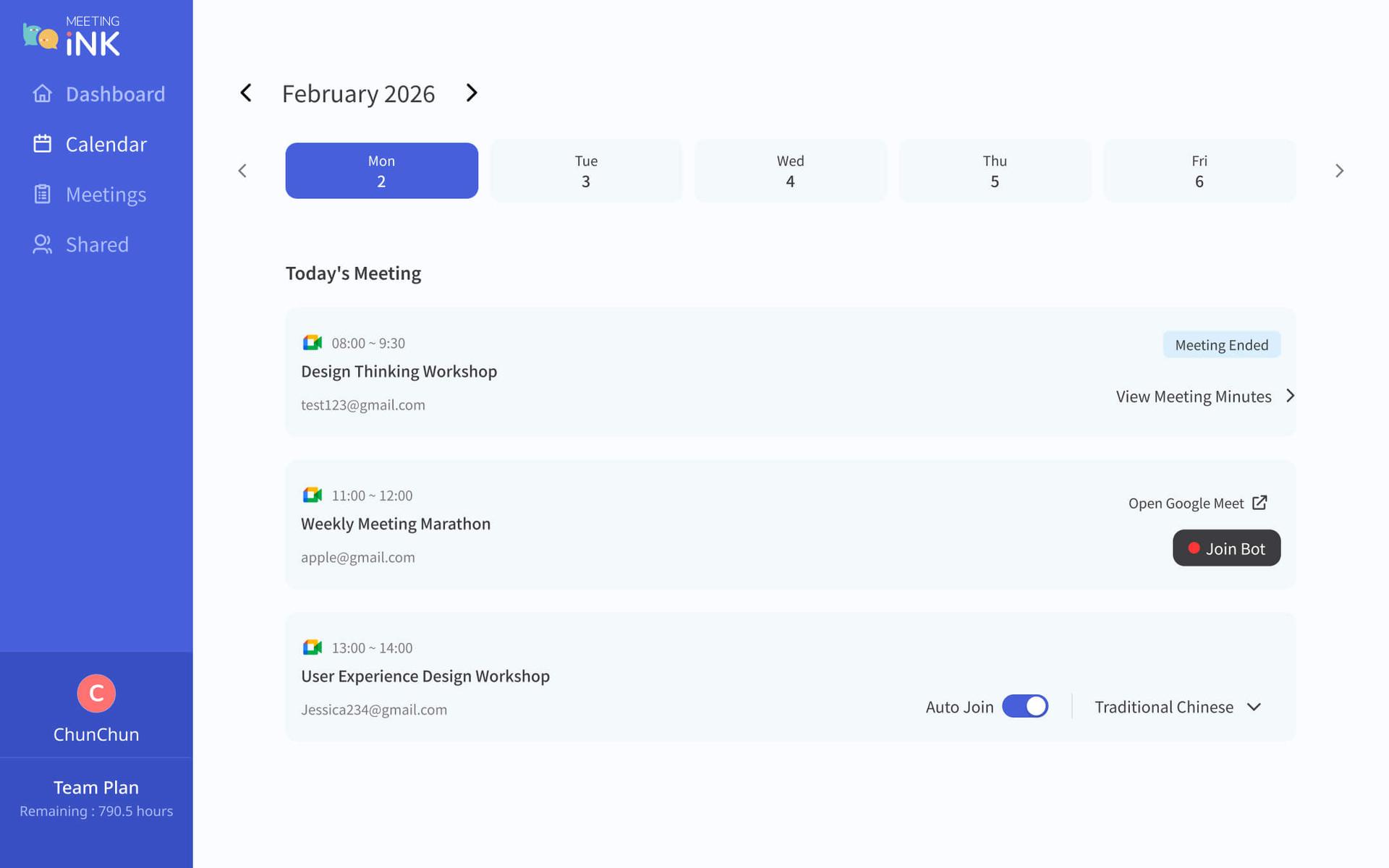
Click “Calendar” in the left navigation to open the Meeting Ink calendar page, where the meeting schedule for the selected date is displayed. Note that if a Google Calendar event does not have a Google Meet link, that meeting will not appear on the Meeting Ink calendar page.

Page layout
Top: year, month, and dates
  • Shows the currently viewed year and month, with controls to go to the previous or next month. Clicking the title quickly jumps back to “today”.
  • Date row: a range of dates is shown horizontally; clicking a date selects that day and updates the meeting list below.
Bottom: meeting list for the day
  • If the selected date is today, the heading shows “Today's meetings”; for other dates, it shows “Meetings for the day”.
  • The list content changes depending on the integration status and meeting data:
    • If no calendar is connected, a “No calendar connected yet” card appears with a “Go to integration” button to guide you back to the Integrations & Apps page to complete the Google connection.
    • If a calendar is connected but there are no meetings that day, an “No meetings today” empty state is shown.
    • If a calendar is connected and there are meetings, each meeting appears as a card, including time, title, host, meeting link, and bot status.

Meeting card statuses
  • Not started (default): you can configure options like auto‑join and transcription language. After the meeting starts, the bot will join according to these settings. Note that within 10 minutes before the meeting start time, changes to the bot's auto‑join status are not supported. If you want to reschedule the bot for that meeting, use the manual actions after the meeting has started.
  • In progress: shows the recording status, a link to join the meeting, and actions like “Record meeting”. From here you can also start recording the online meeting by having the bot join.
  • Ended: you can view the meeting record and, from the record page, view or download transcripts and summaries.
  • Other statuses such as processing, error, retry, or quota exceeded are also indicated on the card with corresponding messages and buttons.

Manually having the bot join a meeting (recording an online meeting)

In addition to calendar meetings that already exist and have auto‑join configured, Meeting Ink also supports assigning a bot to record ad‑hoc online meetings. There are two main scenarios for manually having the bot join a meeting:

From the calendar card
  • If the bot is set not to auto‑join, or if auto‑join is not configured for a given meeting, then when that meeting starts, a “Join bot” button appears on its calendar card.
  • Clicking the “Join bot” button opens a dialog for recording the online meeting. Choose the transcription language and confirm; the system will dispatch the bot and start recording that online meeting. The calendar card will then show a “Recording in progress” status.

Fields in the “record online meeting” window
  • If the meeting you want the bot to record is not in your Google Calendar, you can use the “Create meeting” function on the Dashboard home and choose the “Meeting bot” option.
  • In the dialog, select the “transcription language” and paste the link of the online meeting you want to record. Currently, only Google Meet meetings are supported.
  • After confirming “Start recording”, the bot will be dispatched to the specified online meeting. A host or participant must approve the bot's entry for it to join and start recording. If the bot is denied entry, the calendar card will revert to showing the “Join bot” button.
  • If you encounter quota limits, the screen will show guidance on how to proceed and suggest upgrading your plan.

By combining Google Calendar integration with bot settings, Meeting Ink can better match your meeting habits, giving you a clear overview of your calendar meetings and allowing you to quickly record online meetings whenever needed, so you never miss important discussions. For users with a high volume of meetings, automatic bot recording is an excellent option.

Whether you're using it as an individual or as a team, you can complete the integration in “Integrations & Apps”, fine‑tune the bot behavior, and then manage each meeting's status and recording options from the calendar page.

👉 Try the meeting bot with Google Calendar integration now


Further reading:

Effortless Meeting Notes: 20 New Meeting Summary Templates & Custom Template Guide


FAQ

When using the Meeting Ink meeting bot to join online meetings, you may occasionally run into issues where the bot joins, is removed, or doesn't appear. Below are some common questions and solutions to help you quickly resolve problems and complete your meeting recordings smoothly.


Q: What if my Google Calendar event doesn't have a Google Meet link?

A: The Meeting Ink meeting bot joins meetings based on the “meeting link in the Google Calendar event”.

If the calendar event only has a title and time, and no Google Meet link has been created or attached, the bot will not be able to auto‑join.

Recommended checks:

  • Confirm that the Google Calendar event has a Google Meet meeting link attached.
  • Edit the event, click “Add Google Meet”, save it, and then return to the Meeting Ink calendar page to confirm the status.

Q: What if there's a long period of silence and the bot leaves the meeting automatically?

A: To avoid wasting resources, if the bot detects no sound for more than 10 consecutive minutes during a meeting, the system will automatically remove the bot from that meeting.

This can happen in situations like:

  • The meeting room is opened early, but the meeting has not actually started.
  • Long periods of mute or break time.
  • The meeting is interrupted but not formally ended.

If the meeting is going to continue later, you can manually have the bot rejoin using the methods described below.


Q: If the bot is kicked out or fails to join, how can I add it manually?

A: If the Meeting Ink bot is removed from the meeting by the host, or fails to join due to permissions or connection issues, you can manually have it rejoin.

  • Scenario 1: The bot was kicked out during recording, and you want to continue recording the same Google Meet.
  • Scenario 2: You notice there is no bot in the meeting before recording starts. In either case, you can use one of the methods below:
  1. From “Create meeting” in the Dashboard:
    • On the Dashboard, open the “Create meeting” function and choose the “Meeting bot” option.
    • Then paste the Google Meet link and click “Start recording”. The bot will re‑enter the same Google Meet and resume recording (in scenario 2, the host or a participant must approve the bot's entry).
  2. From the calendar panel or calendar page in the Dashboard:
    • Go to the calendar page from the left navigation.
    • Find the relevant calendar meeting card.
    • Click “Join bot” to have the bot enter the meeting and start recording.

Q: What if we don't start the meeting on time and the bot disappears?

A: Even if auto‑join is enabled, if no one accepts the Meeting Ink bot's join request within 20 minutes after the scheduled meeting start time, the bot will automatically leave the Google Meet.


Q: Is there anything different for internal members on the enterprise plan?

A: The basic features are the same, but enterprise plans add an option to “auto‑join internal members only”. When this is enabled, the bot will automatically join a meeting only if all “participants listed in the Calendar event” use email addresses from the same company domain. If even one external email is included, the bot will not be scheduled to join.

How to confirm the bot email you've integrated:

  • Go to the relevant enterprise workspace.
  • Click your avatar and choose “Settings”.
  • Select “Integrations & Apps”.
  • Confirm that “Google Meet” is connected and click “Settings” on that integration card.
  • Check the email domains listed under “Linked email”, for example, if you see , the domain is example.com.

Using the methods above, you can quickly resume recording even if your calendar settings are incomplete, the meeting is paused, or the bot is removed, so you don't miss any important discussions.

We recommend checking the meeting card status and bot settings on the calendar page before the meeting starts to ensure a smooth recording flow.


Q: When can I use the meeting bot?

A: The Meeting Ink meeting bot will join meetings and perform recording and transcription based on your Google Calendar events or a Google Meet link you provide. It is suitable for the following situations:

  • When you cannot join the meeting on time or in person but still want to keep a record.
  • When you want to automatically generate a verbatim transcript and key points from the meeting for later review or sharing with participants.
  • When you need to consistently record specific types of meetings (such as internal syncs or client meetings) and want the bot to join automatically via calendar integration.

Before using it, please make sure that:

  • The meeting has a Google Meet link. (For automatic joining via calendar, the Calendar event must already contain a Google Meet link.)
  • You have completed Google integration in Meeting Ink and linked the correct email address in the settings.
  • Someone must approve the bot’s join request within about 20 minutes after the meeting starts; otherwise, the bot will automatically leave.

After use, please make sure that:

If you leave the Google Meet while the meeting is still ongoing, the bot will not automatically exit. If you want to stop recording, you must re-enter the meeting and remove the bot manually; otherwise, it will continue recording and consume your meeting recording quota.


Q: How can I record a meeting if I do not want to use the meeting bot?

A: If you prefer not to have the bot join your meeting, there are still other ways to record and transcribe it:

  1. Use the “Record online meeting tab” feature:
    • In the “Create meeting” menu, click “Record meeting” and choose a recording mode (standard recording or live transcript).
    • Turn on the “Record online meeting tab” feature and select the browser tab where your meeting is taking place (for example, the Google Meet tab). The system will record the video and audio of that tab.
    • After the meeting ends, stop the recording. The system will automatically handle transcription and speaker segmentation.
  2. Or, record using another method and then upload the file:
    • If you prefer to record the meeting using other devices or tools (such as a voice recorder, smartphone recording, or other screen recording software), you can first capture the audio that way.
    • After recording, upload the audio file to Meeting Ink for transcription. Common audio formats such as .mp3, .wav, .m4a, and .aac are supported.

Q: For recordings made by the bot versus regular recordings, in which scenarios is speaker diarization supported, and what are the results like?

A: Whether speaker diarization is available and how effective it is will vary depending on how you use the service. Please refer to the table below:

Usage mode

Description

Meeting bot joins Google Meet

Speaker diarization is performed automatically. Supported transcription languages include Traditional Chinese, Hakka, English, Thai, Vietnamese, Malay, Japanese, Korean, Spanish, German, French, Russian, Finnish, and Indonesian, with no limit on the number of speakers.

Speakers are distinguished by their Google accounts in the meeting, so please have each participant join with their own Google account. If multiple people share the same account, all speech under that account will be treated as one speaker.

Meeting recording (standard, non‑live)

Speaker diarization is performed automatically. Different speakers are distinguished using acoustic features from the audio (such as timbre/spectrum and speaking habits), and each speaker is assigned an ID (for example, Guest‑1, Guest‑2, etc.), which is different from the account‑based identification used by the meeting bot.

Supported transcription languages include Traditional Chinese, Hakka, English, Thai, Vietnamese, Malay, Japanese, Korean, Spanish, German, French, Russian, Finnish, and Indonesian. The recommended maximum number of speakers is 11; beyond that, it becomes harder for the model to reliably separate speakers, and accuracy will decrease as the number of speakers increases.

Meeting recording (live transcript, real‑time)

Speaker diarization is performed automatically. Different speakers are distinguished using acoustic features from the audio (such as timbre/spectrum and speaking habits), and each speaker is assigned an ID (for example, Guest‑1, Guest‑2, etc.), which is different from the account‑based identification used by the meeting bot.

Supported transcription languages include Traditional Chinese, English, Thai, Vietnamese, Malay, Japanese, Korean, Spanish, German, French, Russian, Finnish, and Indonesian. The recommended maximum number of speakers is 11; beyond that, it becomes harder for the model to reliably separate speakers, and accuracy will decrease as the number of speakers increases.

File upload

Speaker diarization is performed automatically. Different speakers are distinguished using acoustic features from the audio (such as timbre/spectrum and speaking habits), and each speaker is assigned an ID (for example, Guest‑1, Guest‑2, etc.), which is different from the account‑based identification used by the meeting bot.

Supported transcription languages include Traditional Chinese, Hakka, English, Thai, Vietnamese, Malay, Japanese, Korean, Spanish, German, French, Russian, Finnish, and Indonesian. The recommended maximum number of speakers is 11; beyond that, it becomes harder for the model to reliably separate speakers, and accuracy will decrease as the number of speakers increases.


If speaker labels in the transcription are incorrect (for example, the number of speakers is wrong or one person is split into multiple speakers), please first check whether multiple people joined using the same account (applies only to the meeting bot), whether there were any network or audio interruptions, and whether the meeting was within the supported language and speaker‑count limits. If the issue persists, please contact us through in‑product feedback or customer support with specific meeting details and screenshots to help us investigate.


👉 Try out the meeting bot with Google Calendar integration today.


Contact us

We are continually improving the performance of Meeting Ink and developing more features to help you participate in meetings more efficiently, so please stay tuned.


If you have any suggestions or feedback, feel free to contact our support team at any time. We also welcome your ideas for new summary templates.

  • Email: service@dwave.cc
  • Facebook Messenger: click here

by Meeting Ink Product Team

Tags:
AIMeeting BotGoogle CalendarGoogleGoogle MeetAI Meeting MinutesMeeting INKCalendar Integration
ทดลองใช้ Meeting Ink ฟรี

ทดลองใช้ Meeting Ink ฟรี

สัมผัสทุกฟีเจอร์หลักของ Meeting Ink เพื่อให้การประชุมของคุณมีประสิทธิภาพมากยิ่งขึ้น!

อ่านเพิ่มเติม

Effortless Meeting Notes: 20 New Meeting Summary Templates & Custom Template Guide
October 3, 2025

Effortless Meeting Notes: 20 New Meeting Summary Templates & Custom Template Guide

Boost meeting notes accuracy with your custom vocabularies.
August 25, 2025

Boost meeting notes accuracy with your custom vocabularies.

Meeting Ink AI: Automatic Language Detection in Meetings
May 21, 2025

Meeting Ink AI: Automatic Language Detection in Meetings