
Meeting Ink Enterprise Roles Is Live — Make "Shareable, Accessible, Auditable" Your Default Defense
August 27, 2025Feature Starting Point: The Last Mile—from Tools to Governance
In the real world of enterprises and the public sector, meeting content moves across teams, roles, and even countries. Without clear rules for who can view, edit, and share, great transcription or summaries can still slip out of control. Our new Enterprise Roles bring Roles × Permissions × Sharing Policies together so Meeting Ink evolves from a tool into a governable, auditable collaboration foundation.
Core Capabilities: What Each Role Can and Can't Do
- Owner: The highest privilege under an Enterprise subscription, with full console and member management. Owners typically cannot be modified or suspended by others to preserve consistent governance.
- Admin: Designed for daily operations and coverage. Nearly owner-level console access, including changing other members' roles. However, Admins cannot modify Owners and cannot change their own role (another Admin or the Owner must do that). Ideal for redundancy and reducing single-point risk.
- Security Auditor: Console access to logs and usage, and may Suspend regular users. Cannot add/delete members, and cannot suspend Owners or Admins. Built for compliance, risk monitoring, and incident investigation.
- User (General User – Full Share): This role is suitable for general collaboration scenarios and grants access to all sharing methods, including public links, external invitations, and internal sharing within the workspace. However, users with this role cannot access the admin console.
There are three permission levels under this role: - User (Full Access): Has full rights to share or publish records using all available methods.
- User – Limited Sharing:
Can share meeting records within the same Workspace or via direct Email, but cannot publish records publicly. - User – View Only:
Can only view shared content; no sharing permissions are granted.
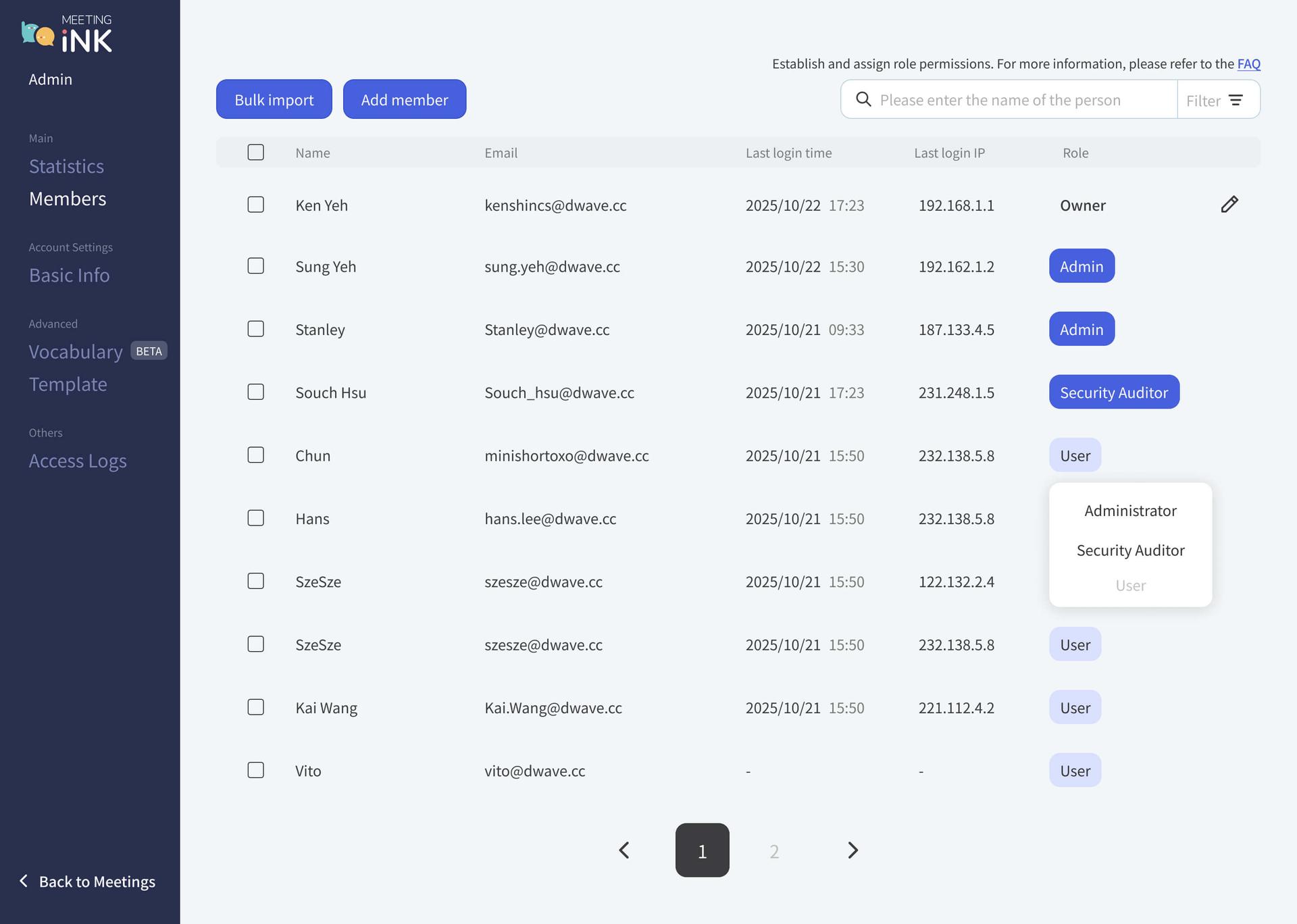
Setup in Three Moves
Assign roles → apply permissions → define sharing policies. That's it—tight governance without slowing the team down.
What Role Settings Unlock
- Create multiple Admins for coverage and smooth daily operations.
- Let Security Auditors review logs/usage and Suspend regular users when needed.
- Narrow sharing rights for Users—e.g., disable public/external sharing or restrict to Workspace-only.
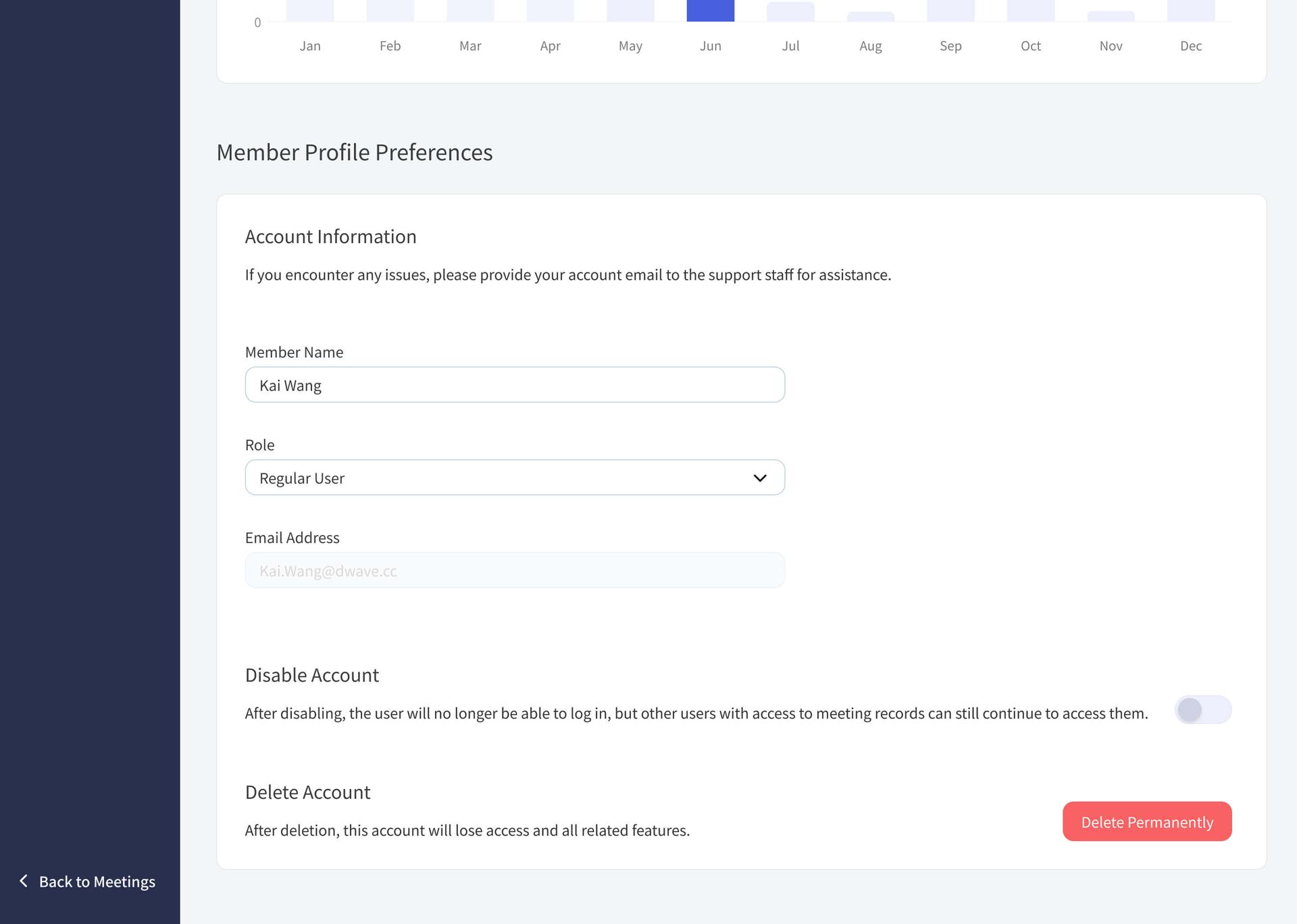
Best Practices: Nailing Security and Velocity
- At least two Admins to avoid a single point of failure.
- Independent audit function: separate Security Auditor and Admin so observe/report and configure/operate keep each other in check.
- Tiered sharing, least privilege by default: start Users at internal-only; grant external sharing case-by-case via Admins.
- Pair with "Summary Templates × Terminology Dictionary":
- Use Summary Templates (Decision/Risk/To-Dos/Owner/Due Date) to standardize outputs and keep them consistently auditable after meetings.
- Maintain consistent multi-lingual and industry terms with a Terminology Dictionary—and think ahead about how knowledge should be structured.
- Roles & sharing policies guard security; templates & dictionaries guard quality—together they make "meeting → decision" stick.
FAQ
Q: Who can change my role?
A: Owners and other Admins. For safety, Admins cannot change their own role.
Q: Does Suspend affect data?
A: No. Existing meeting data is preserved; the suspended user only loses sign-in/operation access.
Q: Which plans include these roles?
A: Enterprise Roles are included with the Enterprise plan; availability to other plans may expand based on demand.
Ready to tailor access control to your org?
👉 Go to the Admin Console

Essai gratuit de Meeting Ink
Découvrez toutes les fonctionnalités clés de Meeting Ink et rendez vos réunions encore plus efficaces !
En savoir plus

Your Face Is the Password Now: Passkey Sign-In Comes to Meeting Ink

Paste a YouTube / Apple Podcast Link to Instantly Transcribe: Take Notes, Write Articles, and Organize Key Points All in One Place
Meeting Ink Desktop Release Note