
Meeting Ink Now Automatically Records All Your Google Meet & Microsoft Teams Meetings
February 3, 2026Never miss a meeting again.
Meeting Ink now automatically joins and records your Google Meet and Microsoft Teams meetings, so you don’t have to remember a thing. Just connect your calendar, and every meeting will be recorded, transcribed, and summarized automatically.
What you get
- Fully automatic recording - No more copying links or clicking “record”, everything runs in the background.
- Works with Google Meet & Microsoft Teams - Seamlessly integrates with Google Calendar and Microsoft Outlook.
- AI transcripts & summaries - Get searchable transcripts and structured summaries right after every meeting.
- Covers all your meetings - Internal or external, if it’s on your calendar, it’s covered.
- Smart speaker detection - Automatically identifies speakers based on microphone input.
How it works (takes ~1 minute)
- Connect your Google or Outlook calendar
- Meeting Ink detects meetings with links
- The bot joins, records, and generates notes automatically
Set up your calendar integration
Step 1: Connect your calendar
- Go to Meeting Ink → Preference → Integrations & Apps
- Choose Google Calendar or Microsoft Outlook Calendar, and click Connect
- Google: Sign in and grant permission to view calendar events, click Allow
- Microsoft Outlook: Sign in and grant calendar read permissions, click Accept
Note for enterprise users: Some Microsoft 365 environments require IT admin approval (via Azure Active Directory). Please contact your IT team if needed.
Step 2: Configure your meeting bot
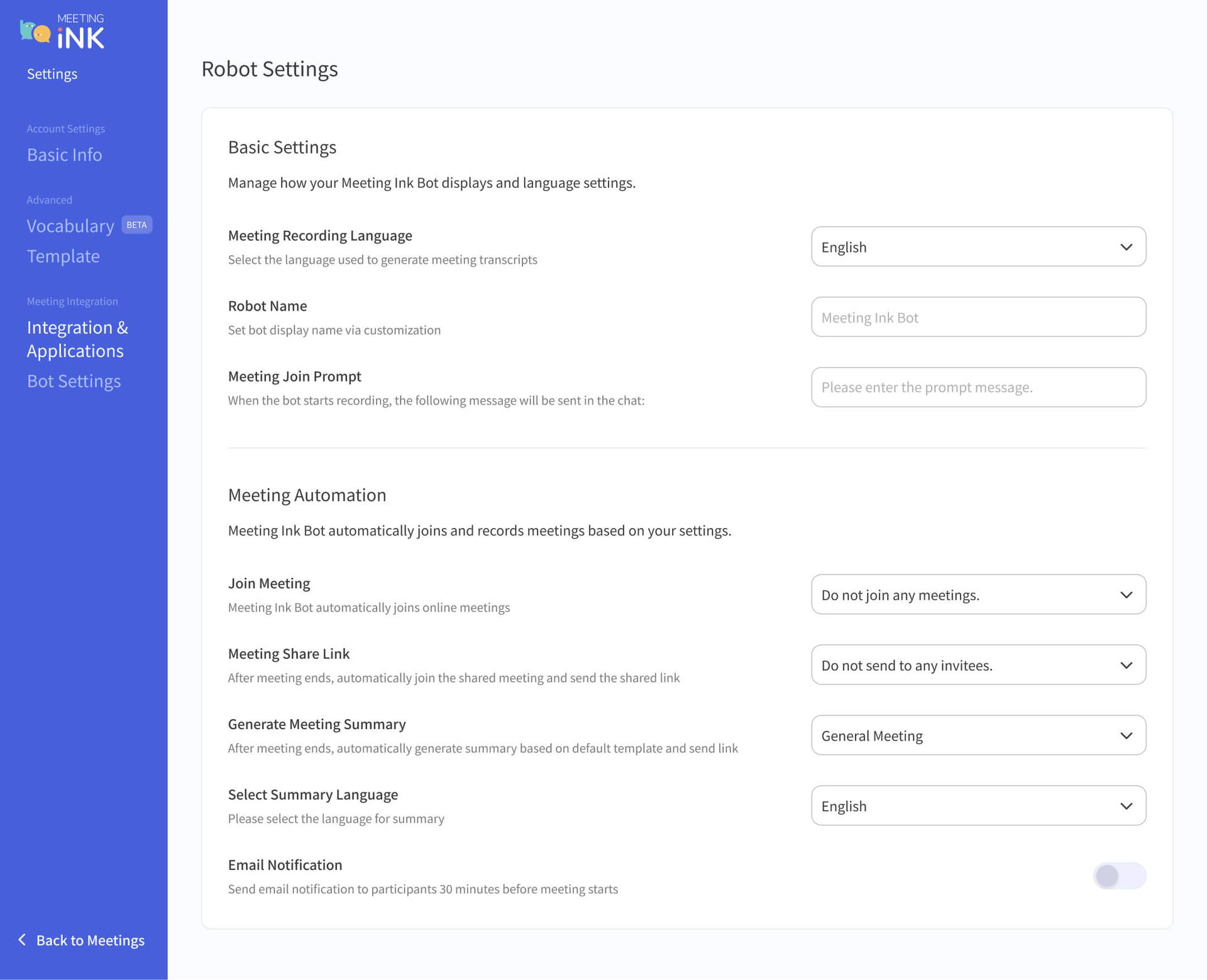
- Go to Bot Settings and customize:
- Default Transcription language: Choose a fixed language or enable auto-detection
- Bot name: Useful when multiple bots join the same meeting
- Join notification: Send a message in the meeting chat when the bot joins
- Automation options
- Auto-join meetings based on your rules
- Automatically share meeting notes with participants
- Generate AI summaries using selected templates
- Send a reminder 30 minutes before meetings
- Enterprise feature: Restrict auto-join to internal meetings only (same company email domain)
Step 3: Manage meetings in Calendar
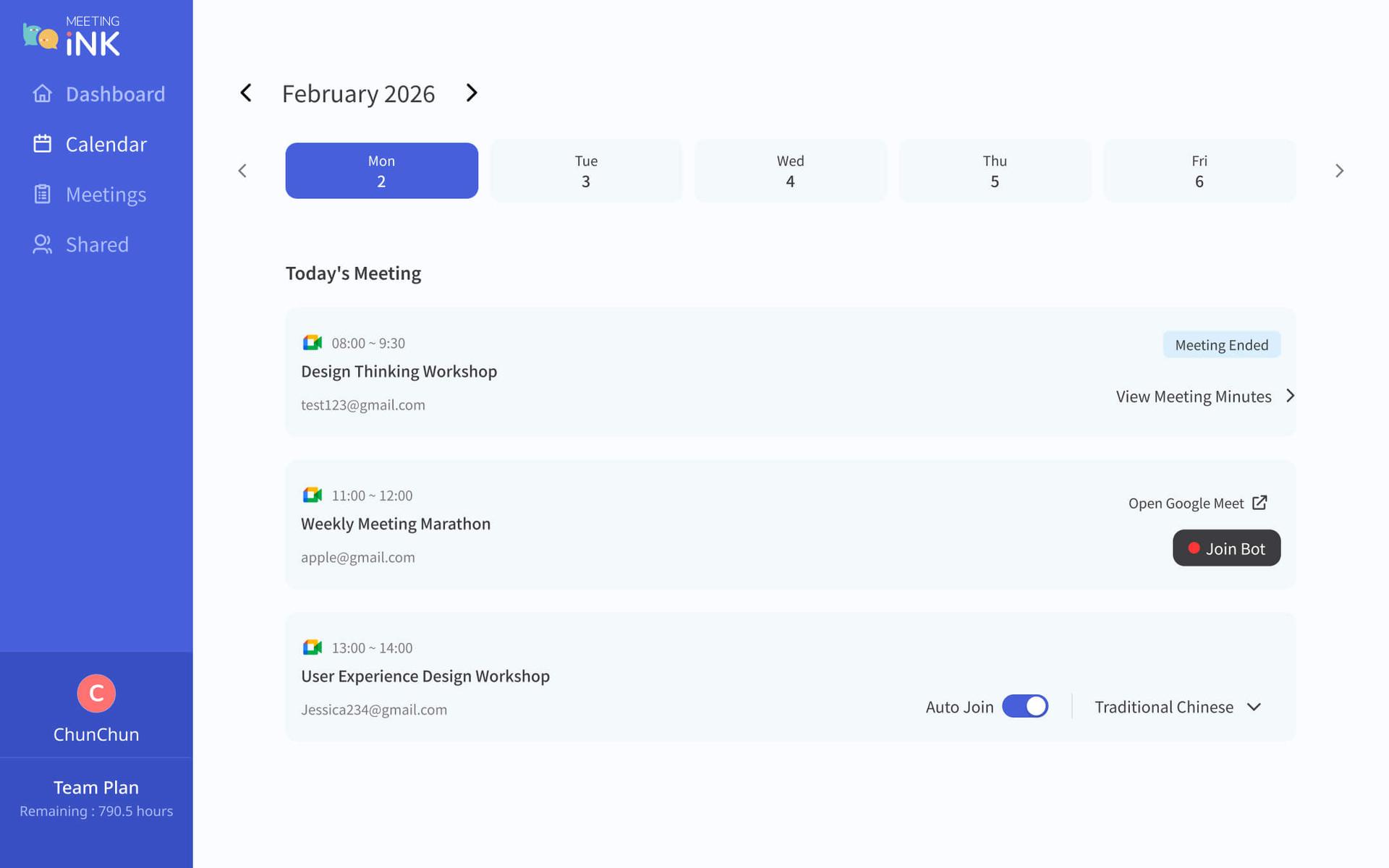
- Go to the Calendar page to:
- View all synced meetings (Google Meet & Teams)
- Check bot scheduling status
- Adjust settings per meeting (disabled within 10 minutes before start)
Using Meeting Ink Bot in your meetings
Before the meeting
- Meetings are automatically synced and scheduled
- Check status in Dashboard → Calendar
- The bot joins ~1 minute before the meeting starts
- Hosts may need to admit the bot (depending on settings)
Google Meet notice: If “Anyone with the link can ask to join” is disabled, bots may be blocked. In this case, use local recording instead.
During the meeting
- If the bot appears in participants → recording has started
- If the bot fails to join:
- Go to Calendar → Join Bot
- Or Dashboard → Create Meeting → Enter link
- Or Create Meeting → Record to local record the meeting
After the meeting
- The bot leaves automatically when the meeting ends
- Transcripts appear in Meetings (Meeting List)
- Share recordings and summaries via link
Built for teams with lots of meetings
With calendar integration and automation, Meeting Ink fits seamlessly into your workflow—so you can focus on the conversation, not the recording.
👉 Try Meeting Ink for FREE today
Further reading:
Effortless Meeting Notes: 20 New Meeting Summary Templates & Custom Template Guide
FAQ
Q1: When does the bot join the meeting?
A: About 1 minute before the scheduled start time. If not admitted within 20 minutes, it will leave automatically.
Q2: Do I need to manually admit the bot?
A: Depends on meeting settings. If a waiting room is enabled, yes.
Q3: Will it join meetings I didn’t organize?
A:Yes—as long as there’s a valid Google Meet or Teams link.
Q4: Can I control which meetings the bot joins?
A:Yes. Use keyword rules (e.g., “[Record]”) to filter meetings.
Q5: Why does the bot leave automatically?
A: If no audio is detected for 10 minutes, it exits the meeting.
Q6: Is this feature free?
A:Calendar integration is free. Full automation requires a paid plan (Pro+).
Q7: Why are speaker labels incorrect in the transcript?
A:The meeting bot identifies speakers based on logged-in accounts. If multiple participants share the same account, it may affect speaker attribution accuracy. If the issue persists, please submit feedback through the product or contact support with specific meeting details and screenshots so we can investigate further.
Q8: What if I don’t want the bot to join a meeting, or the host doesn’t allow it?
A: If you prefer not to use the meeting bot, you can use the “Record Meeting” option to record directly from your device. Simply go to “Create Meeting” in Meeting Ink and select “Record” to start recording.
👉 Try out the meeting bot today.
Contact us
We’re continuously improving Meeting Ink to help you run better meetings.
Have feedback or feature ideas? We’d love to hear from you:
- Email: service@dwave.cc

Meeting Ink kostenlos testen
Entdecken Sie alle Kernfunktionen von Meeting Ink und machen Sie Ihre Meetings noch effizienter!
Weiterführende Informationen

Your Face Is the Password Now: Passkey Sign-In Comes to Meeting Ink

Paste a YouTube / Apple Podcast Link to Instantly Transcribe: Take Notes, Write Articles, and Organize Key Points All in One Place
Meeting Ink Desktop Release Note