
Effortless Meeting Notes: 20 New Meeting Summary Templates & Custom Template Guide
October 3, 2025Why Do You Need a Meeting Summary Template?
After a meeting ends, many teams struggle with the same problems:
- Inconsistent summaries – Everyone structures their meeting notes differently, making it difficult for managers or colleagues to quickly understand the key takeaways.
- High prompt-writing barriers – Teams want to use AI-powered tools to generate summaries but don’t know how to write effective prompts, wasting time rewriting and adjusting.
- Hard-to-implement results – Many outputs only describe what happened without highlighting follow-up actions, responsibilities, or deadlines.
This is where Meeting Ink’s meeting summary templates provide real value. Instead of scattered transcripts, you get clear, structured, and actionable meeting minutes that help your team stay aligned and accountable.
20 Ready-to-Use Meeting Summary Templates
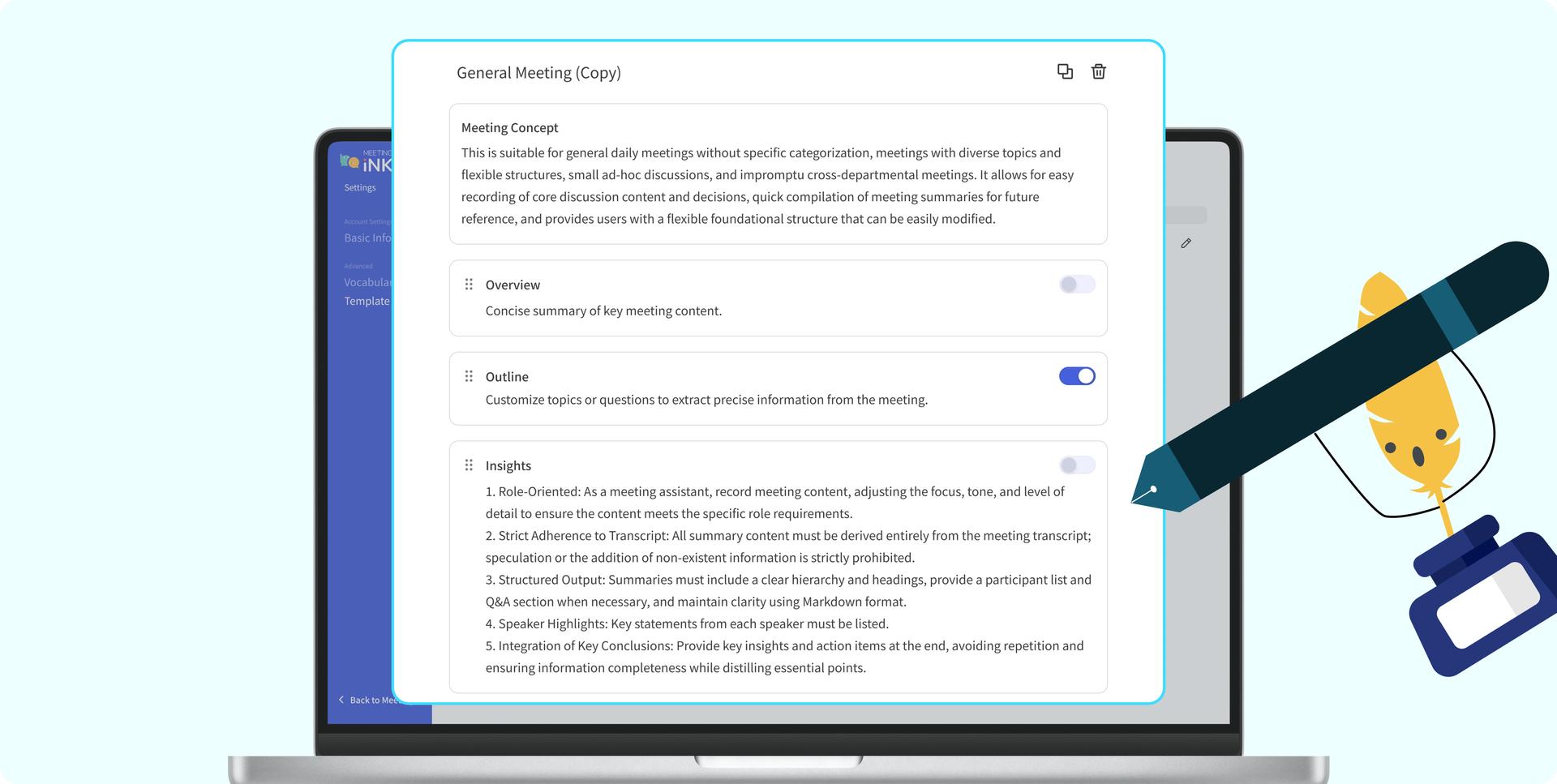
Meeting Ink includes 20 professionally designed meeting summary templates for different scenarios: general meetings, sales reviews, product updates, education, healthcare, interviews, and more.
With just one click, you can generate well-structured meeting notes tailored to your meeting type - no need to spend extra time formatting or rephrasing.
Customizable & Modular Structure
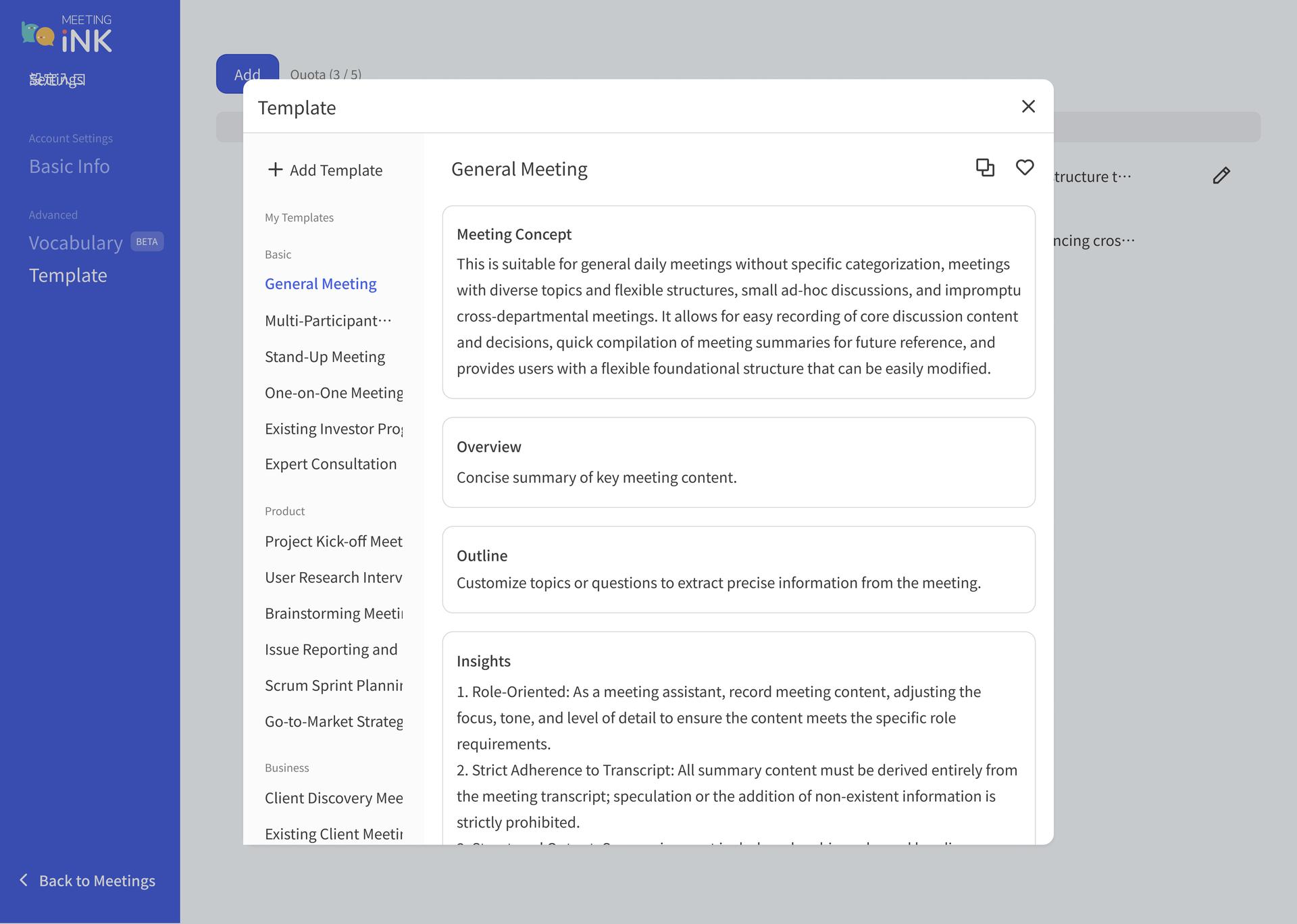
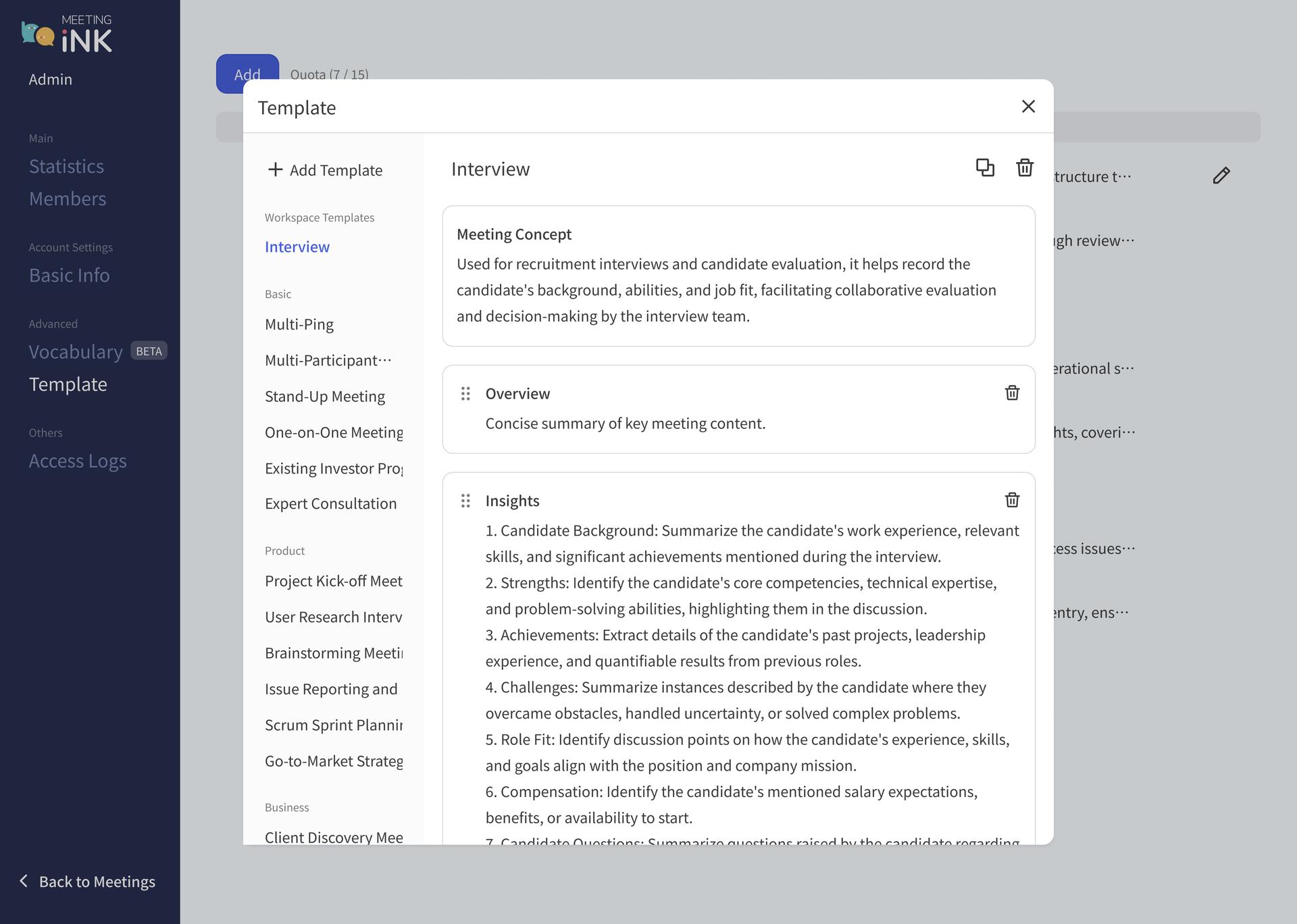
Meeting Ink’s templates use a modular block system that lets you easily view, reorder, or toggle sections on and off.
Common blocks include:
- Meeting Concept
- Overview
- Outline
- Insights
- Action Items
- Custom Section (available only in “My Templates”)
Each block can be edited, removed, or rearranged to fit your needs. This flexibility gives you a clear preview of the final summary and ensures consistent, professional meeting notes every time.
Create Your Own Custom Meeting Summary Templates
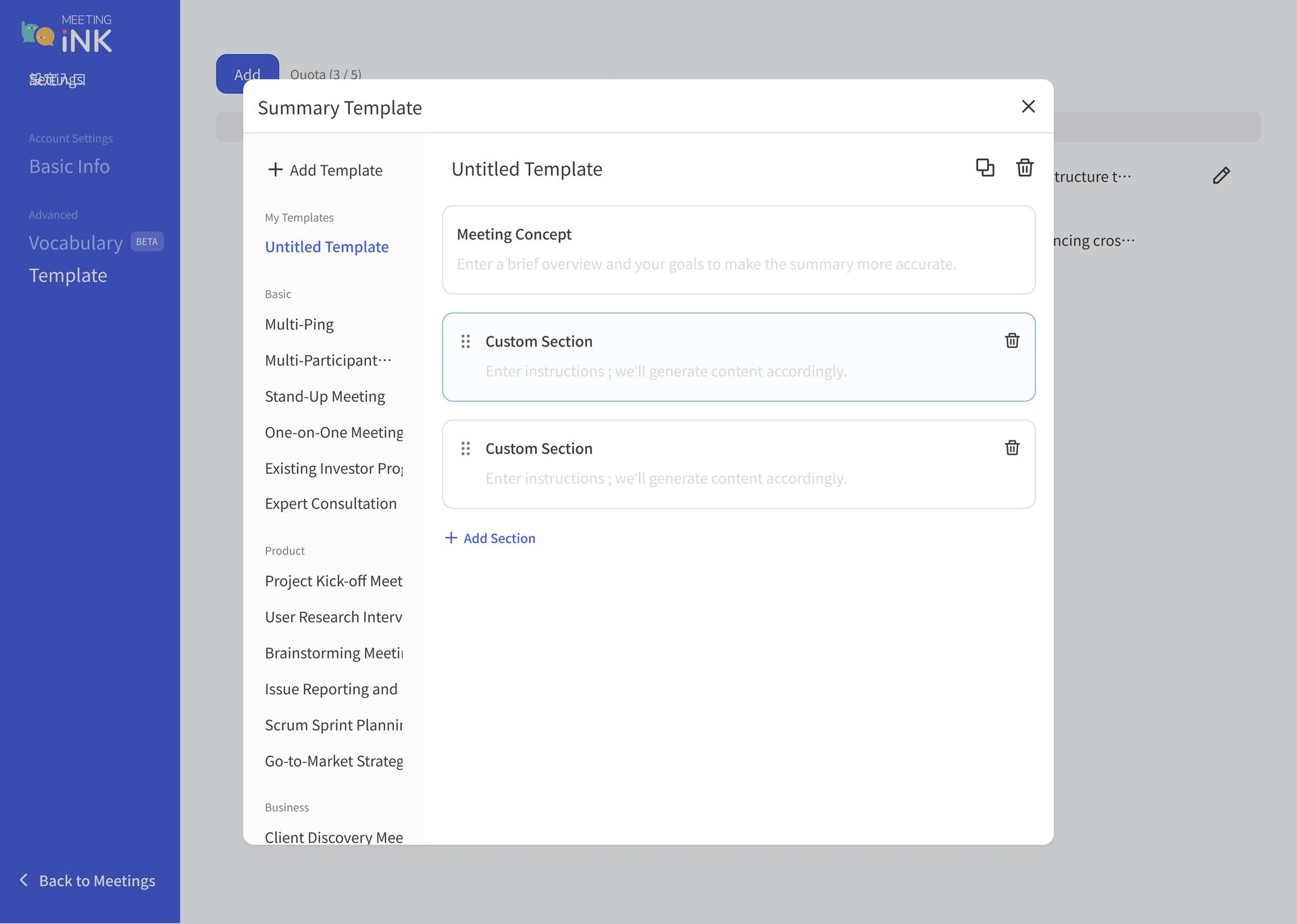
Set up your organization’s standard meeting summaries without writing complex prompts. Templates can be tailored to your team’s rules, projects, or preferred tone, ensuring consistency across all meeting notes.
- Each template can include up to 3 custom sections.
- Each custom section can contain up to 500 words of generation instructions.
- Supports conditional instructions and formatted outputs such as tables, lists, decision trees, timelines, and more.
Benefits of a Prompt-Free, AI-Powered Approach:
Frontline team members don’t need to learn AI prompt writing. With Meeting Ink, they can still create accurate and reliable meeting summaries quickly and consistently.
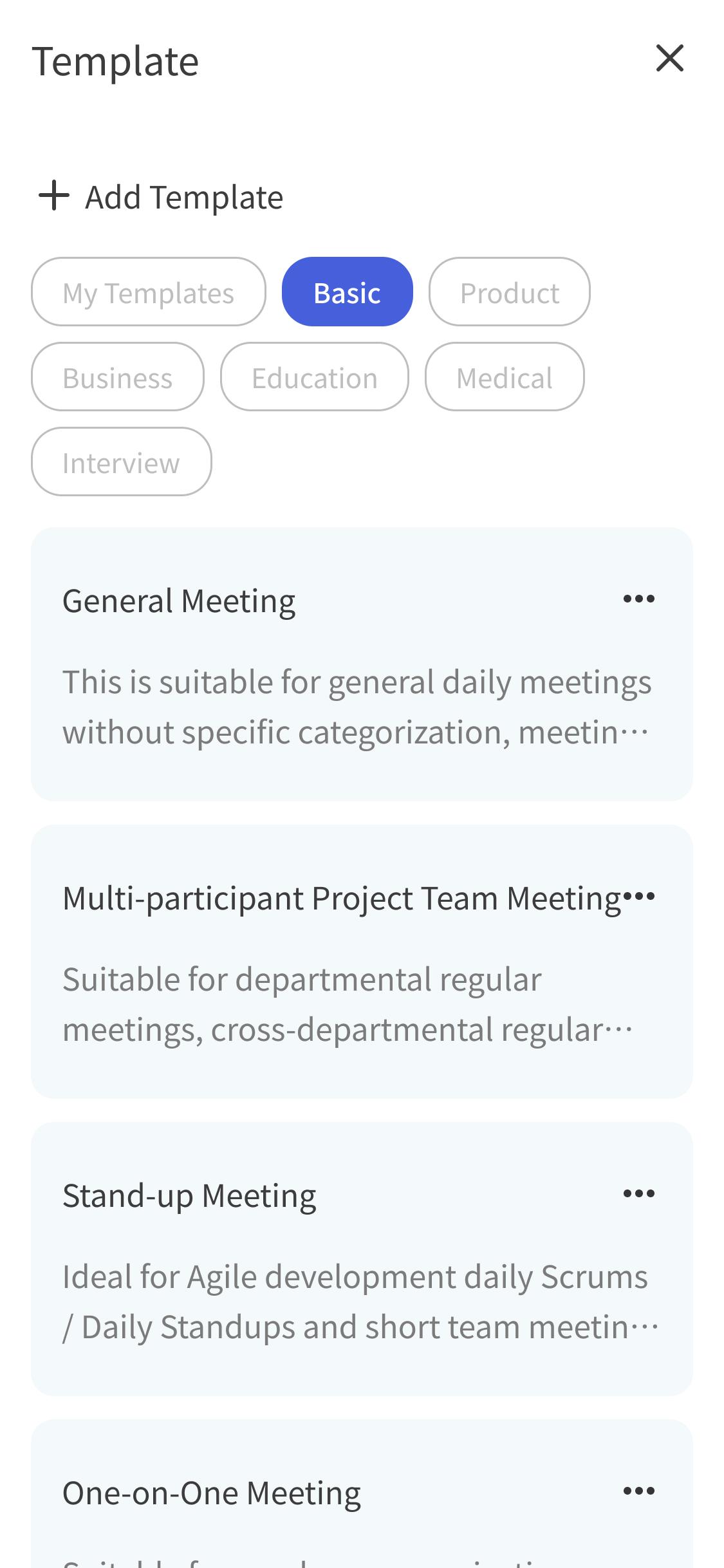
Get started now with summaries that better fit your meeting needs!
👉 Visit the Meeting Summary Template page
Simple Workflow: From Meeting to Summary in Minutes
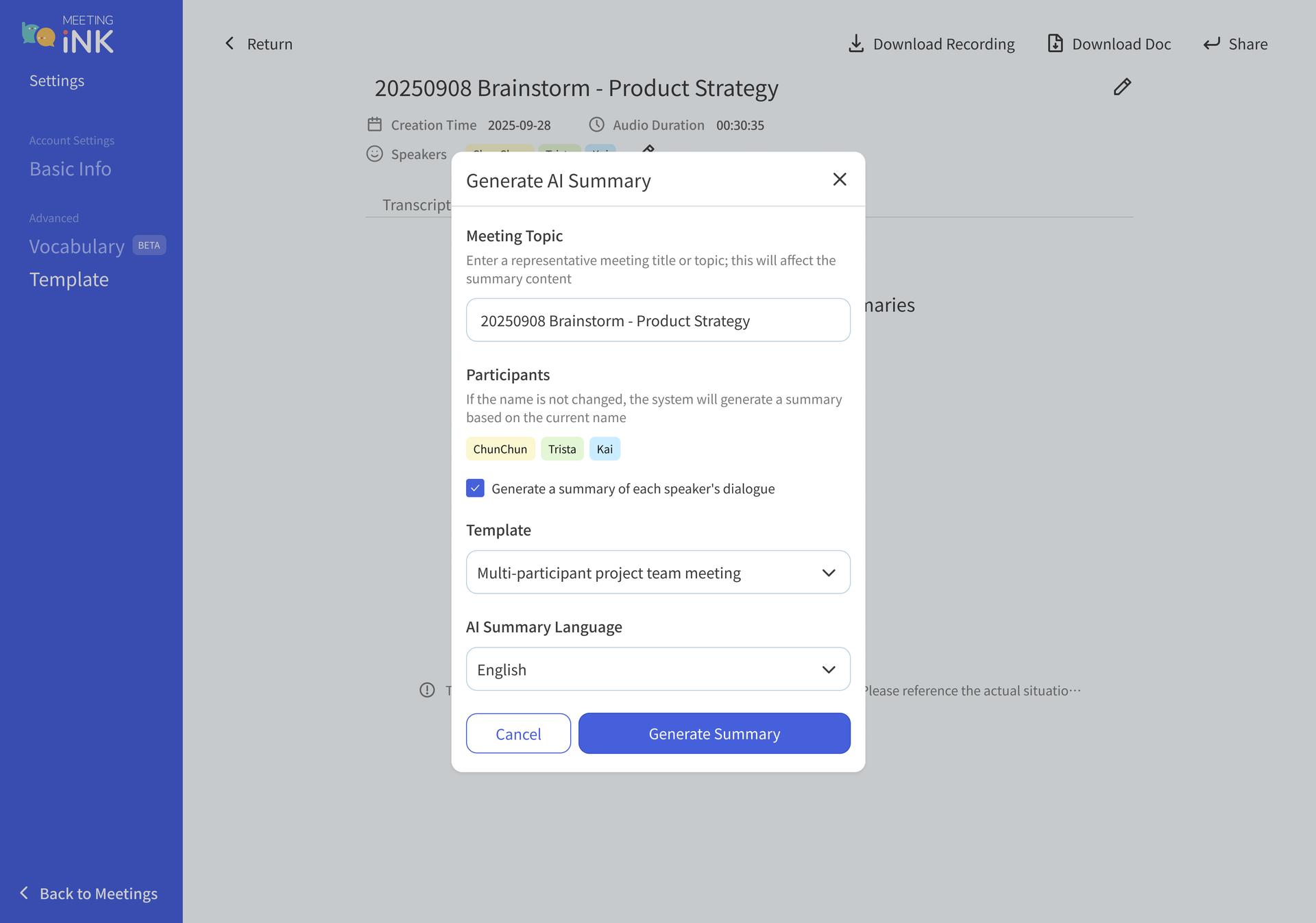
A. Using Default Templates
- End your meeting or import a recording.
- Go to the Summary page.
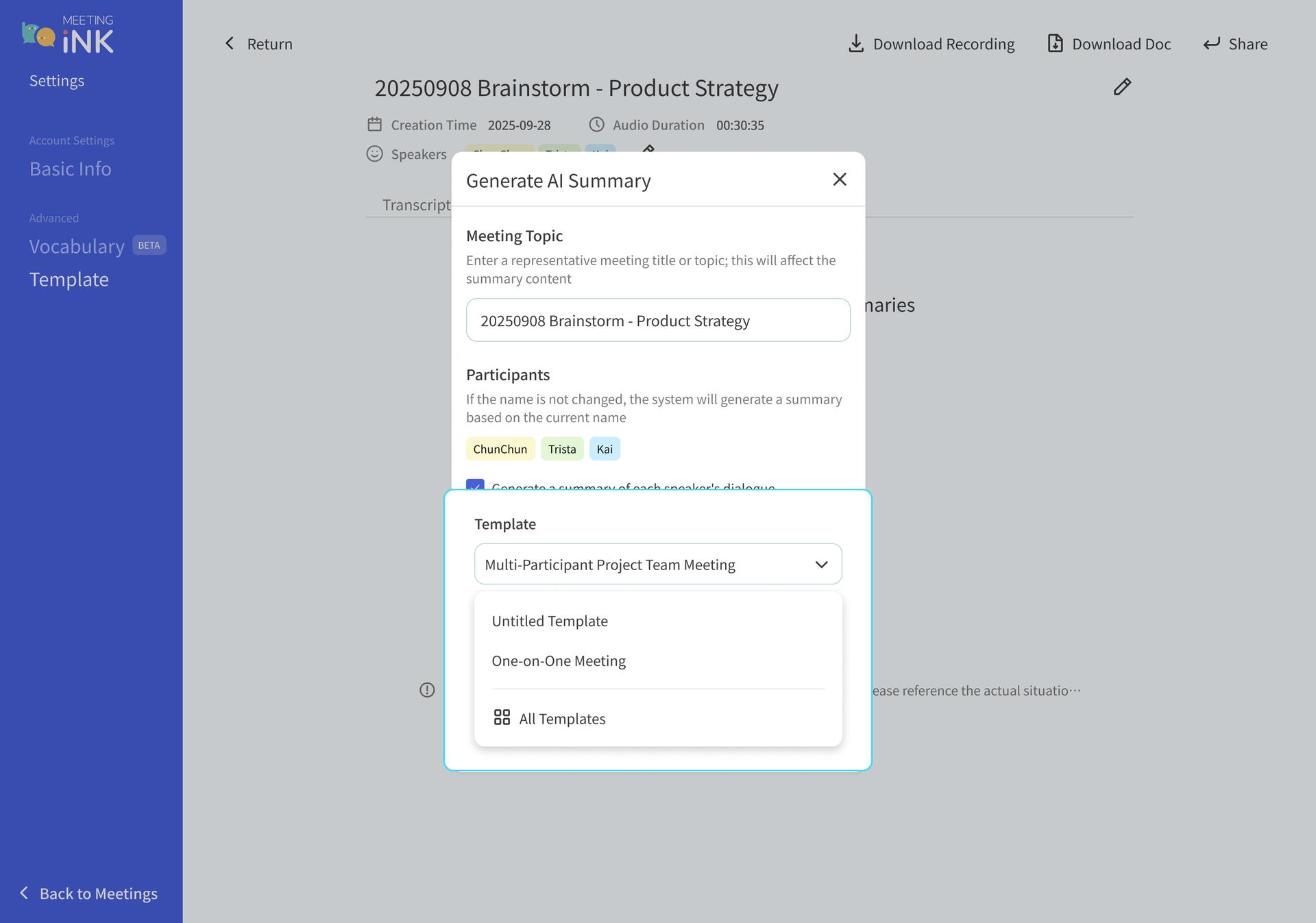
- Click “Select Template” → choose from 20 pre-built options (e.g., General Meeting, Sales Review, Stand-up, Interview).
- Generate the summary → share via link, export as Word/TXT, or copy to your collaboration tool or email.
B. Using Custom Templates
- Go to Account Settings → Summary Template Management → Add New.
- If you want to adjust one of the 20 default templates, first make a copy, then use Edit Template to change its structure or content.
(Default templates cannot be edited directly—you must copy them into your personal template library first.) - Write the Meeting Concept:
- Define the scenario or purpose this template is intended for.
- This helps generate more accurate and contextually relevant meeting summaries (up to 500 words; optional).
- Add Custom Sections (up to 3):
- Specify the output format (e.g., “Please organize basic meeting info such as agenda”).
- Define the content focus (e.g., “List final decisions, rationale, and alternative options”).
- Use conditional logic or Q&A style if needed (e.g., “Summarize key discussion points in a Q&A format and categorize by topic”).
Save the template → it can now be selected anytime a meeting summary is needed.
Enterprise Use: Standardize Meeting Minutes Across Teams
Admins can create company-wide templates so all team members generate summaries in the same format. This helps organizations maintain consistency, clarity, and accountability across projects and departments.
Tips for Better Meeting Summaries
- Start with structure: Decide on headings like Decision / Rationale / Next Steps / Responsible Person / Deadline.
- Align with decision-making: Use templates that highlight responsibilities and risks.
- Keep it readable: Summarize key outcomes in 2–3 sentences to ensure everyone understands what was decided and why.
Usage Guidelines and Limitations for Summary Templates
- Beta Summary Templates: Starting immediately, all users in the beta trial program will have access to the new summary templates. The feature will first be available on the Web version, and not yet on the app version. The app version is expected to fully launch on October 20, 2025, along with the global release. While users can select templates in the app, editing and customizing templates can currently only be done on the Web.
- Enterprise Summary Templates: Available to organization/enterprise plans; contact your account representative for detailed information and activation.
- Platform Limitation: The ability to edit and use templates will only be available on the Web version. To maintain feature consistency with official release and event environments, the app version will not support this feature during the beta phase.
- Template Quantity Limits:
- Custom templates are available to different user plans with the following limits:Free / Pro / Pro+ / Team plans will receive 1 / 3 / 5 / 5 template slots respectively. For enterprise users, template limits may be extended based on your plan. Please contact your account representative for more information.
- Each custom template allows up to 3 editable blocks.
- Each block supports up to 500 characters and can be rearranged, deleted, or modified freely.
- The Concept block (for structured summaries) and Custom block (for personalized content) are both editable.
Template Priority Rules: When a new user creates their first summary, if a custom template is already set, the system will prioritize applying “My Template” over default options. Users without a template set will receive the default system-generated summary. For returning users, the system will prioritize their most frequently used or most recently selected templates.
FAQ
Q: How do I create a new summary template?
A: You can either copy an existing default template and make adjustments or click “Add New Template” to create one from scratch. Both options allow you to manage your templates quickly and efficiently in your list.
Q: Can I generate tables or fixed formats in my meeting notes?
A: Yes! Simply write your formatting requirements - such as columns, naming rules, examples, or default phrases for missing data - into a custom section. The AI-powered system will generate your meeting minutes according to these specifications.
Writing Tips for Custom Sections:
- Clearly specify the output format (list, table, heading rules).
- Define what information to extract and the evaluation criteria.
- Set default phrases for empty data to avoid blank sections.
Q: If I delete a summary template, does it free up my template limit?
A: Yes. For example, on the Basic plan, you can create up to 3 custom templates. Deleting a template frees up a slot so you can create a new one. If you need additional templates, you can either delete less-used ones or upgrade your plan. Plans & pricing
Q: I’m on a personal plan and reached my template limit. How can I add more?
A: Review your existing templates and remove less-used ones to free up space, or upgrade to a higher plan to increase the number of template slots. Plans & pricing
Q: I’m a Meeting Ink enterprise user, and different departments need their own summary formats. What should I do?
A: Enterprise accounts can use Enterprise Custom Summary Templates. Admins can define 1 - 3 company-standard templates, including required custom sections and formatting, to ensure consistency across departments. For additional templates or advanced onboarding support, contact service@dwave.cc.
Q: Which version of the Meeting Ink mobile app is required to use the “Meeting Summary Template” feature?
A: Update your Meeting Ink iOS or Android app to v1.0.21 or later to access the meeting summary template feature.
Get started now with summaries that better fit your meeting needs!
👉 Visit the Meeting Summary Template page
Contact Us
We are constantly improving Meeting Ink and adding features to help you create clear, actionable meeting notes efficiently. We welcome your suggestions and feedback, including ideas for new templates:
- Email: service@dwave.cc
- Facebook Messenger: Click here
by Meeting Ink Product Team

Meeting Ink kostenlos testen
Entdecken Sie alle Kernfunktionen von Meeting Ink und machen Sie Ihre Meetings noch effizienter!
Weiterführende Informationen

Your Face Is the Password Now: Passkey Sign-In Comes to Meeting Ink

Paste a YouTube / Apple Podcast Link to Instantly Transcribe: Take Notes, Write Articles, and Organize Key Points All in One Place
Meeting Ink Desktop Release Note