
Meeting Ink AI: Automatic Language Detection in Meetings
May 21, 2025Do your work meetings sometimes bounce between different languages?
When you turn on "Auto Detect (Multi‑language)" under Transcription Language, Meeting Ink's multilingual model automatically figures out which language is being spoken and delivers an accurate transcript. Even if several languages pop up in the same recording, it can recognize them line-by-line and display each segment in the correct language.
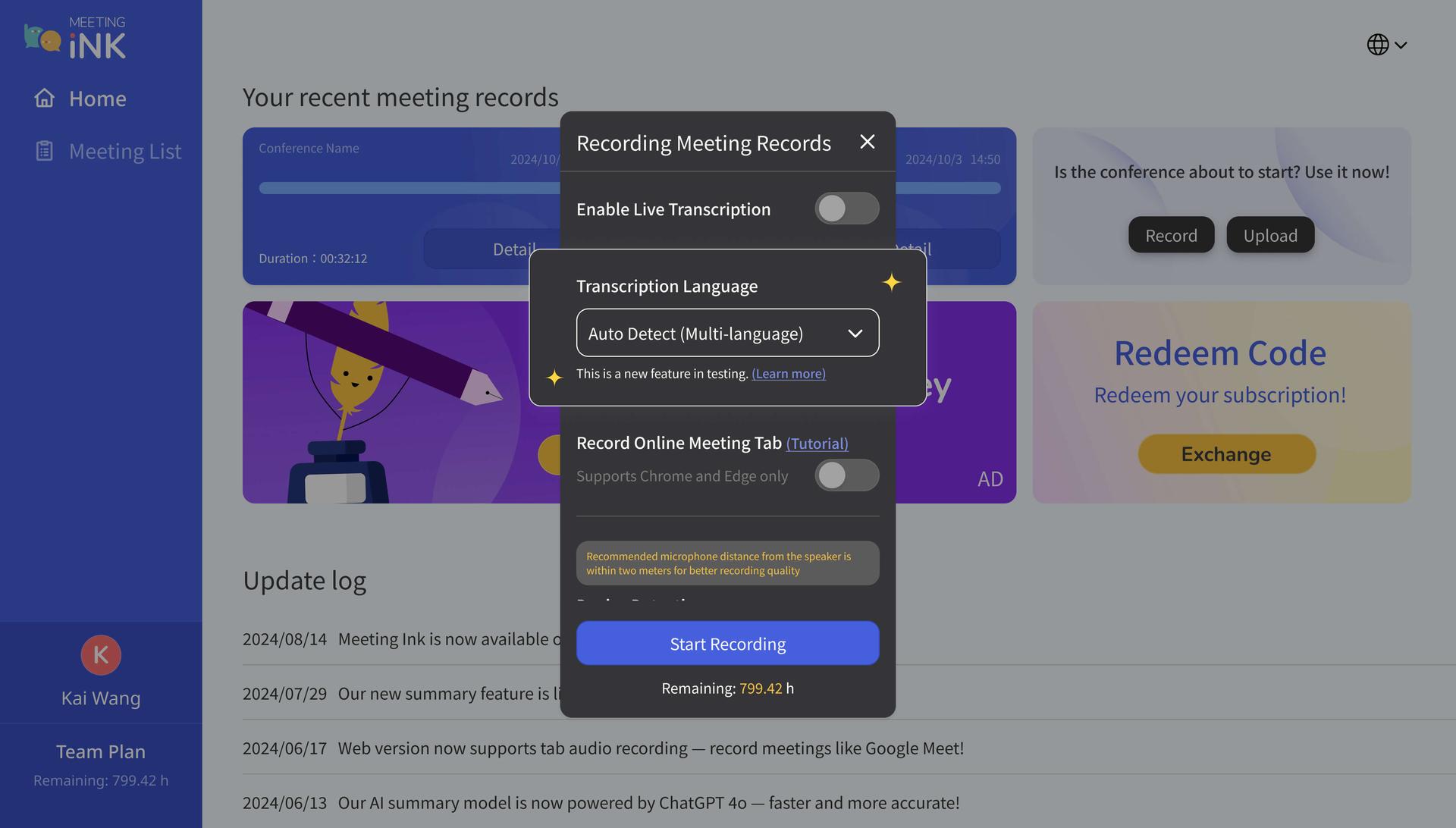
Q: Which languages can Meeting Ink detect automatically?
A: It currently supports: Traditional Chinese, US English, Australian English, Canadian English, UK English, Indian English, German, European Spanish, Mexican Spanish, Canadian French, French, Hindi, Italian, Japanese, Korean.
Q: Our meeting jumps between Chinese, English, and even Japanese—can Meeting Ink handle that?
A: Absolutely. Just enable Auto Detect (Multi‑language) when you set the Transcription Language.
Q: Why does part of the transcript show up in English (or another language) when we were clearly speaking Chinese?
A: That usually means the audio quality wasn't great—heavy background noise, lots of room echo, or the mic was too far away. These issues can trick the AI into misidentifying the language for that sentence.
Q: How do I keep other languages from sneaking into the transcript when "Auto Detect (Multi‑language)" is on?
A: Try these tips:
- Record in a quiet space and minimize background noise.
- Use a conference-grade microphone or other high-quality recording gear.
- If you know the meeting will stick to a single language (say, all Chinese), manually choose that language instead of relying on automatic detection—you'll get even better accuracy.

Meeting Ink kostenlos testen
Entdecken Sie alle Kernfunktionen von Meeting Ink und machen Sie Ihre Meetings noch effizienter!
Weiterführende Informationen

Your Face Is the Password Now: Passkey Sign-In Comes to Meeting Ink

Paste a YouTube / Apple Podcast Link to Instantly Transcribe: Take Notes, Write Articles, and Organize Key Points All in One Place
Meeting Ink Desktop Release Note